> ## Documentation Index
> Fetch the complete documentation index at: https://docs.contraforce.com/llms.txt
> Use this file to discover all available pages before exploring further.
# Rules
> Import rules from a workspace, author them from scratch, version them, deploy them, and roll them back.
A rule in a repository has a definition, a platform, a version history, and a record of
where it has been deployed. This page covers getting rules in and moving them out.
## Ways to add a rule
Bring in rules already running in a Sentinel or Defender workspace.
Pull a ContraForce-maintained template. See [Marketplace](/guides/content-management-center/marketplace).
Write a new rule directly in the editor.
All three require the **Author** content permission, and all three respect protection: in
a protected repository the result is a work-in-progress item, not a committed rule.
## Import from a workspace
Importing adopts rules that already exist in a customer's tenant, so they become managed
content instead of untracked configuration.
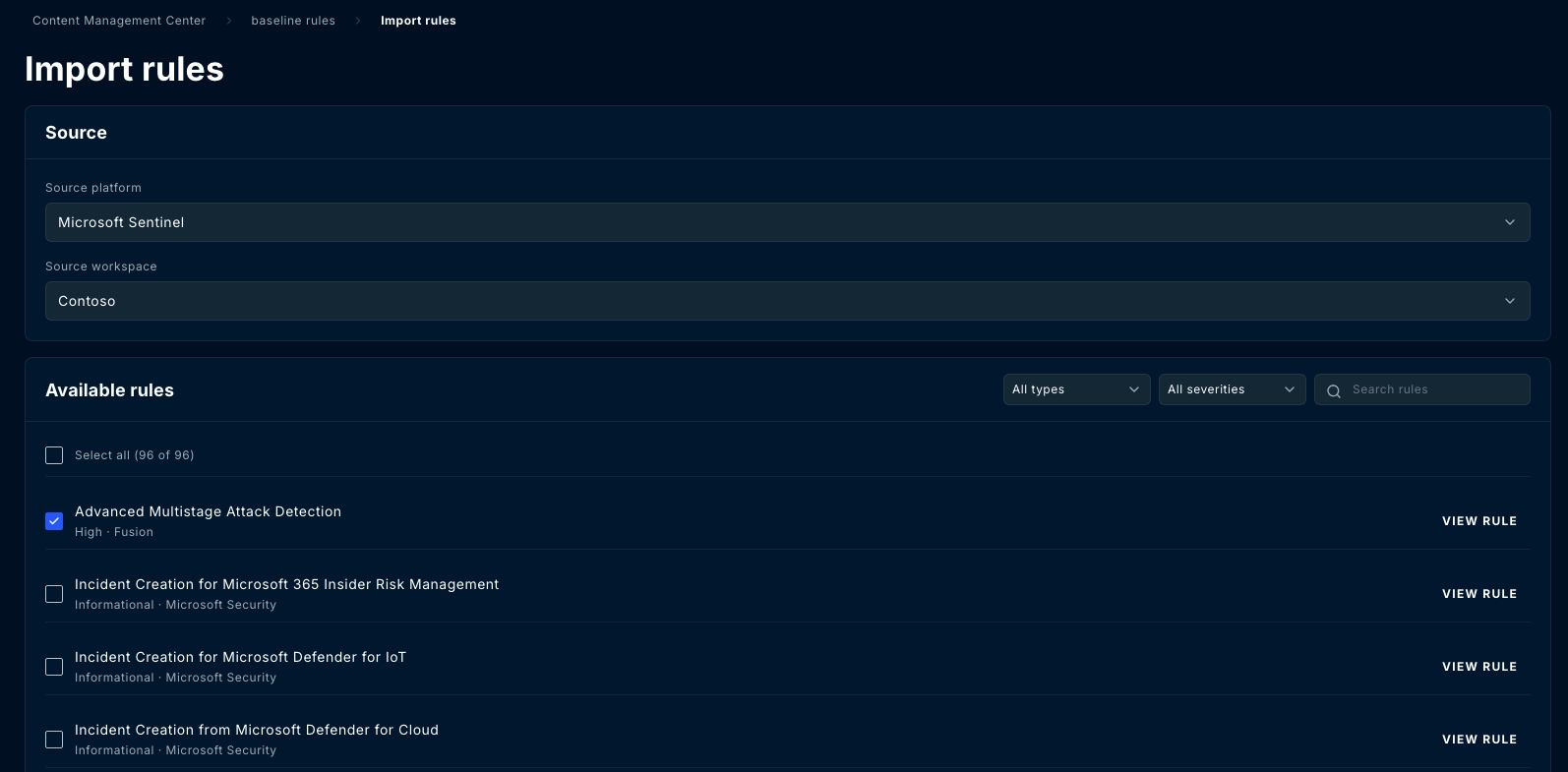
From the repository's **Rules** tab, select **Import rules**.
Pick a **source platform** (Microsoft Sentinel or Microsoft Defender XDR) and then the
**source workspace** to read from. The importable list and the fields shown differ by
platform.
Filter by type and severity or search by name, then select what you want. **Select all**
takes everything matching the current filter, and the count tells you how many that is.
In an unprotected repository the rules join the baseline immediately. In a protected one
they arrive as work in progress.
 Importing copies the rule into the repository. It does not take over the live rule. Until
you deploy the repository's copy back out, the workspace keeps running what it was already
running, and the two can drift apart.
## Author a rule
The rule editor captures:
* **Name**, **description**, and **severity**
* **Platform**, which determines validation and the deployment target
* The **query**, with a test-query action to run it before saving
* **MITRE ATT\&CK** tactics and techniques
* **Entity mappings**, so detections resolve to accounts, hosts and other entities
* **Tags**, used for filtering and grouping
Use the test-query action before saving. It runs the query against the target platform and
surfaces syntax and schema errors while you can still fix them cheaply.
## Versions and history
Every change to the baseline creates a new version. Open a rule and its detail view carries
three tabs:
| Tab | Shows |
| --------------- | ------------------------------------------------------------------- |
| **Deployments** | Which workspaces this rule has been deployed to, and when. |
| **Forks** | Variants derived from this rule. |
| **History** | Every version, with the change type, author, timestamp and message. |
Importing copies the rule into the repository. It does not take over the live rule. Until
you deploy the repository's copy back out, the workspace keeps running what it was already
running, and the two can drift apart.
## Author a rule
The rule editor captures:
* **Name**, **description**, and **severity**
* **Platform**, which determines validation and the deployment target
* The **query**, with a test-query action to run it before saving
* **MITRE ATT\&CK** tactics and techniques
* **Entity mappings**, so detections resolve to accounts, hosts and other entities
* **Tags**, used for filtering and grouping
Use the test-query action before saving. It runs the query against the target platform and
surfaces syntax and schema errors while you can still fix them cheaply.
## Versions and history
Every change to the baseline creates a new version. Open a rule and its detail view carries
three tabs:
| Tab | Shows |
| --------------- | ------------------------------------------------------------------- |
| **Deployments** | Which workspaces this rule has been deployed to, and when. |
| **Forks** | Variants derived from this rule. |
| **History** | Every version, with the change type, author, timestamp and message. |
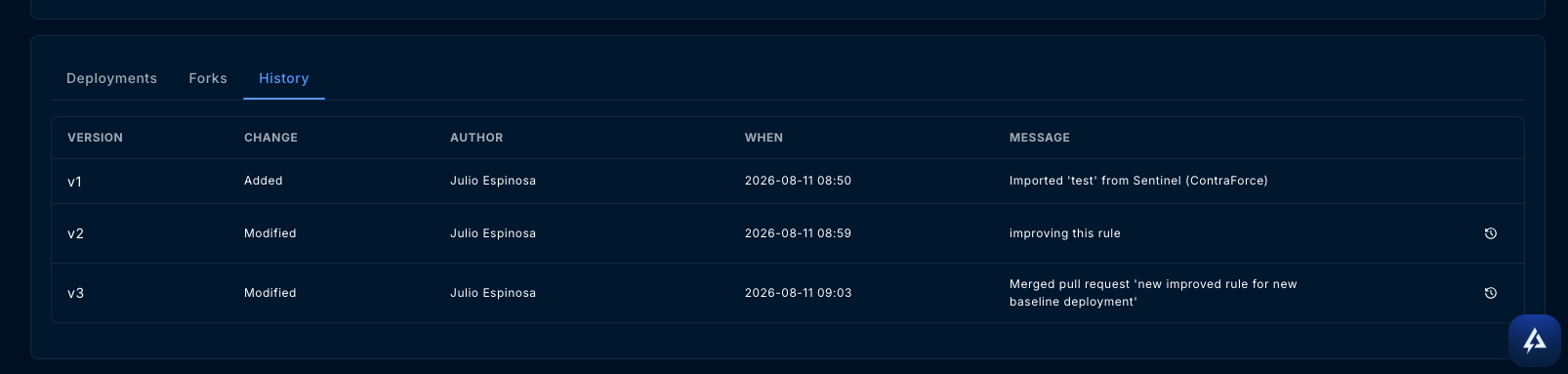 The **message** records why a version exists, and it is written for you: an import records
what it came from, and a merge records the change request it came through. That turns the
history into a readable account rather than a list of timestamps.
Nothing is overwritten in place. An older version stays retrievable, which is what makes
rollback possible.
## Forks
A fork is a deliberate divergence from a base rule, for when one customer needs a variant
rather than a change everyone gets.
A forked rule keeps a link to its base, and CMC can show the **diff between a fork and its
base** so the divergence stays visible instead of becoming folklore.
Reach for a fork when the difference is permanent and specific. If the change is an
improvement everyone should get, change the base rule instead.
## Deploy
Deployment pushes a rule from the repository to one or more covered workspaces.
CMC validates the rule against the target before writing. Validation failures are
reported per workspace, so one bad target does not hide the rest.
Deploy a single rule, or use the repository's deploy view to push a set.
The rule's **Deployments** list records each workspace it reached and when.
A deployment records provenance in the target. That provenance is what later lets a drift
scan match a live rule back to its repository rule with certainty rather than by guessing
at the name.
## Rollback
Rollback redeploys an earlier version of a rule to the workspaces running it. Use it when a
deployed change turns out to be wrong, rather than hand-editing the rule in the vendor
console, which creates drift.
## Delete
A rule can be deleted from a repository individually or in bulk.
Deleting a rule from the repository does not remove it from workspaces it was deployed to.
Remove it from the workspaces first if you want it gone everywhere, otherwise it keeps
running as an untracked rule.
The **message** records why a version exists, and it is written for you: an import records
what it came from, and a merge records the change request it came through. That turns the
history into a readable account rather than a list of timestamps.
Nothing is overwritten in place. An older version stays retrievable, which is what makes
rollback possible.
## Forks
A fork is a deliberate divergence from a base rule, for when one customer needs a variant
rather than a change everyone gets.
A forked rule keeps a link to its base, and CMC can show the **diff between a fork and its
base** so the divergence stays visible instead of becoming folklore.
Reach for a fork when the difference is permanent and specific. If the change is an
improvement everyone should get, change the base rule instead.
## Deploy
Deployment pushes a rule from the repository to one or more covered workspaces.
CMC validates the rule against the target before writing. Validation failures are
reported per workspace, so one bad target does not hide the rest.
Deploy a single rule, or use the repository's deploy view to push a set.
The rule's **Deployments** list records each workspace it reached and when.
A deployment records provenance in the target. That provenance is what later lets a drift
scan match a live rule back to its repository rule with certainty rather than by guessing
at the name.
## Rollback
Rollback redeploys an earlier version of a rule to the workspaces running it. Use it when a
deployed change turns out to be wrong, rather than hand-editing the rule in the vendor
console, which creates drift.
## Delete
A rule can be deleted from a repository individually or in bulk.
Deleting a rule from the repository does not remove it from workspaces it was deployed to.
Remove it from the workspaces first if you want it gone everywhere, otherwise it keeps
running as an untracked rule.