> ## Documentation Index
> Fetch the complete documentation index at: https://docs.contraforce.com/llms.txt
> Use this file to discover all available pages before exploring further.
# Onboarding Workspaces at Scale
> Onboard a single customer workspace with a profile applied automatically, or import a whole batch of customers from a CSV file.
Onboard customers one at a time or hundreds at once, and have each new workspace land already configured. Pick a **Workspace Profile** during onboarding and ContraForce applies its access, module, notification, and Gamebook settings as soon as the workspace exists.
**Who is this for?**
* MSP/MSSP partners bringing on new customers
* Organizational Admins and Workspace Admins responsible for onboarding
***
## What Can You Do Here?
Add a workspace and pick the profile that should configure it.
Upload a CSV and pre-onboard up to 200 workspaces in one action.
Track each import row's outcome and re-import only what failed.
***
## Prerequisites
| Requirement | Description |
| ------------------------------------------- | --------------------------------------------------------------------------------------------------------------------------------------- |
| **Organizational Admin or Workspace Admin** | Required to onboard workspaces and run imports. |
| **Customer tenant IDs** | You need each customer's Microsoft Entra tenant ID. |
| **A Workspace Profile (optional)** | Only needed if you want new workspaces configured automatically. See [Workspace Profiles](/guides/fleet-management/workspace-profiles). |
***
## Onboarding a Single Workspace with a Profile
From the left navigation, select **Workspaces**, then click the **Onboarding** tab.
The **Add a workspace** panel opens.
| Field | Description |
| ----------------------------------- | ---------------------------------------------------------------------------------------------- |
| **Workspace name** | Display name for this workspace. Enter a domain and ContraForce looks up the tenant ID for you |
| **Tenant ID** | The customer's Microsoft Entra tenant ID |
| **Customer admin email** (optional) | Where the invite link is sent. You can use your own email |
| **Workspace profile** (optional) | The profile that should configure this workspace once it is created |
Choose the modules to seed on the next step and send the invite. The workspace appears on the **Onboarding** tab with a pending badge.
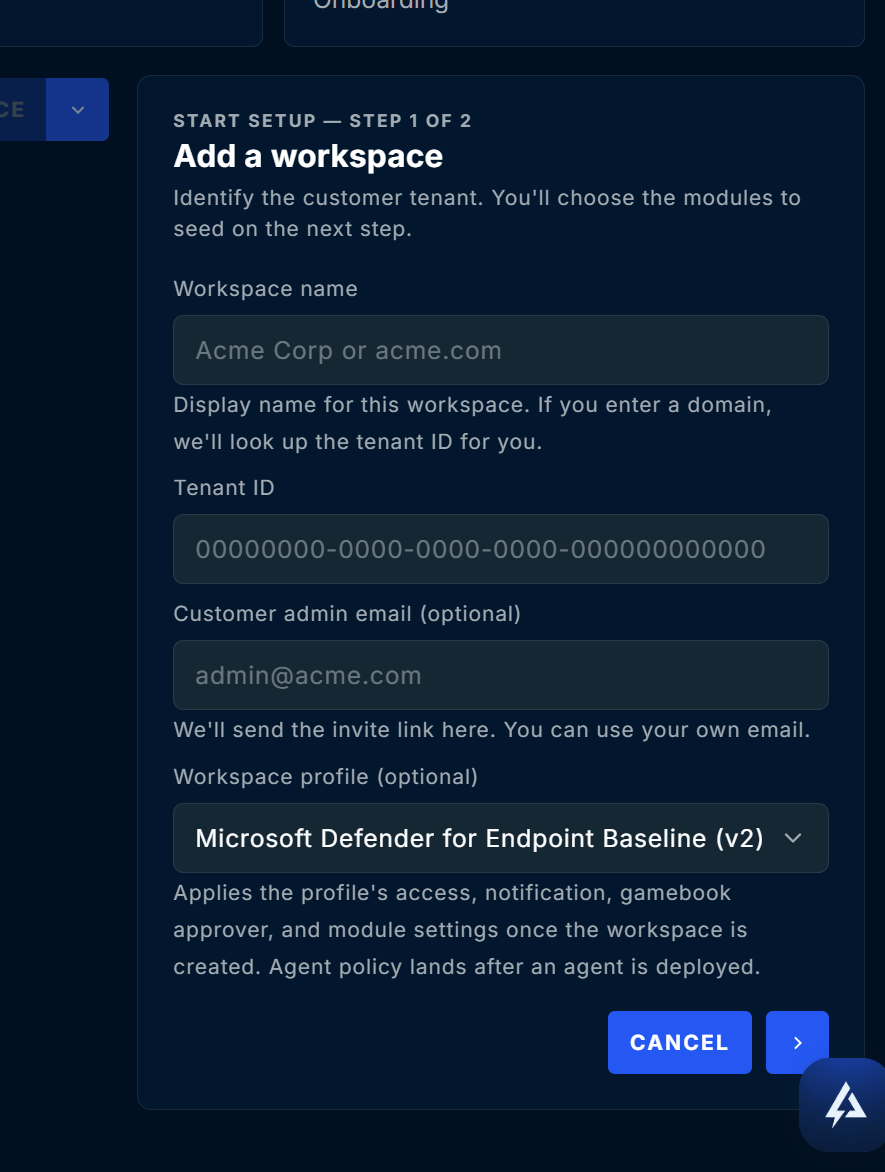 The profile's access, notification, Gamebook approver, and module settings are applied once the workspace is created. You do not need to apply the profile by hand.
If the profile's modules would move the workspace onto a higher-priced plan, that part is left for you to confirm. Open the profile, click **Apply**, and acknowledge the charge. Creating a workspace is never treated as consent to a recurring charge.
Agent policy lands after an agent exists for the workspace. If the profile is set to **Provision**, ContraForce creates the agent for you. See [Agents in a Profile](/guides/fleet-management/workspace-profiles#agents-in-a-profile).
***
## Importing a Batch from CSV
Use an import when you are bringing on many customers at once. Every row is pre-onboarded exactly as if you had typed it into the form.
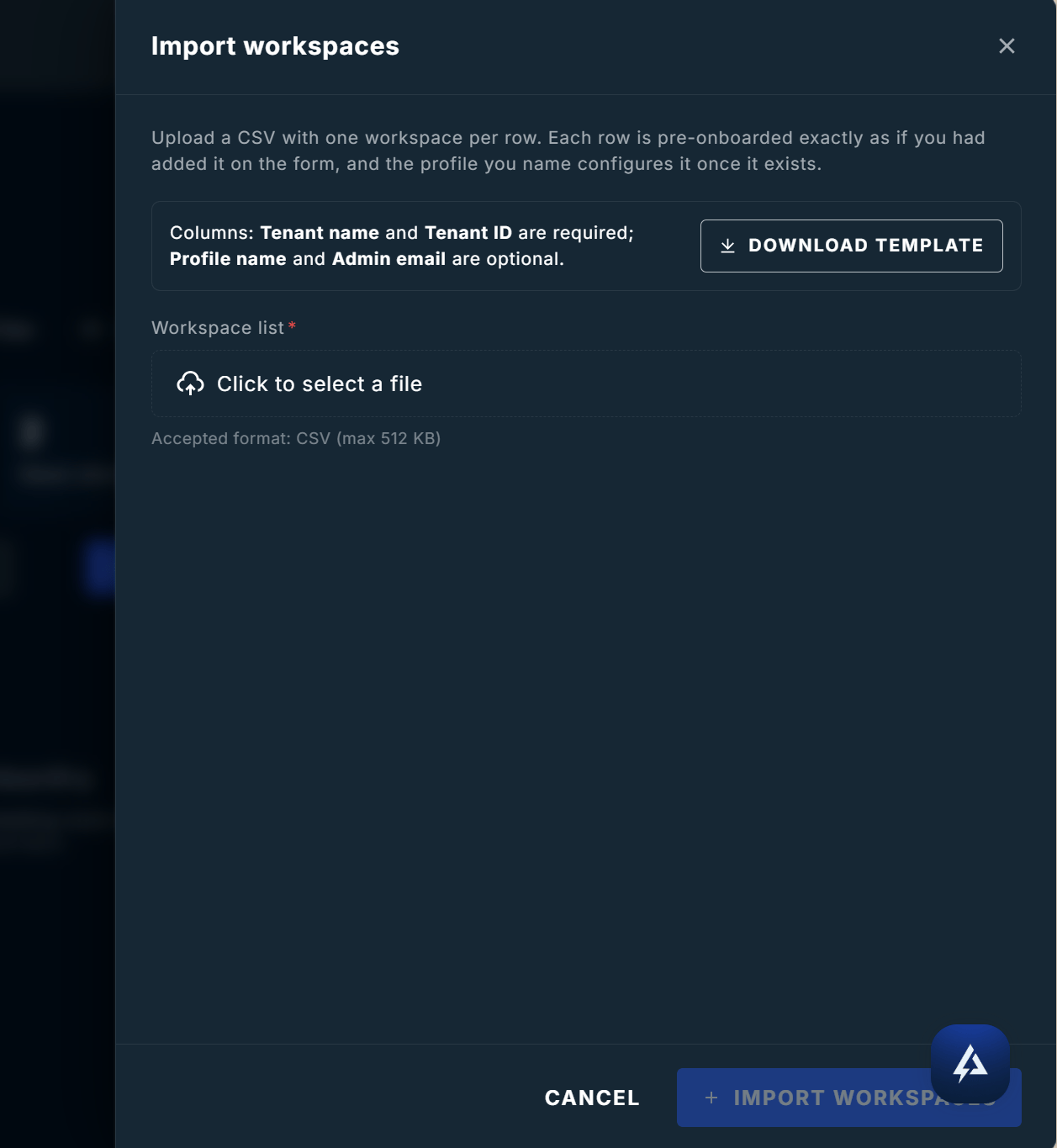
From the **Workspaces** page, choose **Import workspaces**.
Click **Download template** to get a CSV with the right columns and a sample row.
Replace the sample row with your customers. The sample tenant ID is intentionally an all-zero placeholder, so a file saved without editing fails loudly instead of onboarding the wrong tenant.
Select the file and click **Import workspaces**. ContraForce validates the whole file before anything is created.
The import runs in the background, one row at a time. Open it to see each row's status and result.
The profile's access, notification, Gamebook approver, and module settings are applied once the workspace is created. You do not need to apply the profile by hand.
If the profile's modules would move the workspace onto a higher-priced plan, that part is left for you to confirm. Open the profile, click **Apply**, and acknowledge the charge. Creating a workspace is never treated as consent to a recurring charge.
Agent policy lands after an agent exists for the workspace. If the profile is set to **Provision**, ContraForce creates the agent for you. See [Agents in a Profile](/guides/fleet-management/workspace-profiles#agents-in-a-profile).
***
## Importing a Batch from CSV
Use an import when you are bringing on many customers at once. Every row is pre-onboarded exactly as if you had typed it into the form.
From the **Workspaces** page, choose **Import workspaces**.
Click **Download template** to get a CSV with the right columns and a sample row.
Replace the sample row with your customers. The sample tenant ID is intentionally an all-zero placeholder, so a file saved without editing fails loudly instead of onboarding the wrong tenant.
Select the file and click **Import workspaces**. ContraForce validates the whole file before anything is created.
The import runs in the background, one row at a time. Open it to see each row's status and result.
 ### CSV columns
| Column | Required | Description |
| ---------------- | -------- | --------------------------------------------------------------------------------------------- |
| **Tenant name** | Yes | The customer's display name in ContraForce |
| **Tenant ID** | Yes | The customer's Microsoft Entra tenant ID, as a GUID |
| **Profile name** | No | The Workspace Profile that should configure this workspace. Must match a profile name exactly |
| **Admin email** | No | Where the invite link is sent for this customer |
```csv theme={null}
Tenant name,Tenant ID,Profile name,Admin email
Contoso Ltd,3f2504e0-4f89-11d3-9a0c-0305e82c3301,Managed XDR baseline,admin@contoso.example
Fabrikam Inc,7c9e6679-7425-40de-944b-e07fc1f90ae7,Managed XDR baseline,admin@fabrikam.example
```
Column **order does not matter**, and ContraForce recognizes the usual header spellings (`Tenant ID`, `tenantid`, `Directory ID`, and similar). Comma, semicolon, and tab-separated files all work, so a spreadsheet exported from a European locale imports without editing.
### Limits
| Limit | Value |
| ------------------ | -------------- |
| Rows per import | 200 |
| File size | 512 KB |
| Tenant name length | 200 characters |
### What is validated before anything is created
| Check | Behavior |
| -------------------------------------------- | ----------------------------------------------------------------------- |
| **Missing name or tenant ID** | That row fails; the rest of the file still imports |
| **Tenant ID is not a valid GUID** | That row fails rather than being guessed at |
| **Duplicate tenant ID in the file** | Flagged against the later row, naming the earlier row it duplicates |
| **Row numbers** | Count the header as row 1, so they match your spreadsheet's row numbers |
| **Tenant not recognized in Microsoft Entra** | Shown as a warning only. The row still imports |
***
## Tracking an Import
Each import has its own activity page listing every row with its outcome.
| Row status | Meaning |
| ------------- | --------------------------------------------------------------- |
| **Queued** | Waiting its turn |
| **Running** | Being created now |
| **Succeeded** | The workspace was created and appears on the **Onboarding** tab |
| **Failed** | The row could not be created, with the reason shown on the row |
Rows are processed one at a time, so a large import takes a few minutes. Successful rows are created immediately, so you do not have to wait for the whole file to finish before working with them.
If an import stops making progress, a **Resume** option appears after a few minutes. Resuming picks up where the import left off and never re-creates a workspace that already exists.
Do not re-upload the whole file to fix a few failures. Create a new CSV containing only the failed rows. Re-importing an existing tenant is rejected as a duplicate.
***
## What Happens Next
Importing pre-onboards each customer. The customer admin still completes their own setup wizard using the invite link.
They grant ContraForce access to their Microsoft tenant. See [Customer Workspace Onboarding](/guides/onboarding/customer-workspace-onboarding).
The card moves from the **Onboarding** tab to the **Workspaces** tab.
Open the profile and check the **Activity** tab. Anything still waiting shows as not yet on the current version. Click **Apply now**.
***
## Troubleshooting
| Issue | Cause | Solution |
| --------------------------------------- | ------------------------------------------------------ | ----------------------------------------------------------------------------- |
| "Missing Tenant ID column" | The header row was not recognized | Start from **Download template** and keep the header row intact |
| Every row failed with a tenant ID error | The tenant ID column holds names or truncated values | Confirm each value is a full Microsoft Entra tenant GUID |
| Profile name not matched | The name in the CSV does not match a profile exactly | Copy the name from the **Profiles** tab, including spacing and capitalization |
| Row failed with a plan charge message | The workspace is beyond your plan's included allowance | Re-import that row once the additional charge is acknowledged |
| Import stuck at Running | The import stalled | Wait for the **Resume** option to appear, then resume it |
| Workspaces created but not configured | The profile has not been applied yet | Open the profile and click **Apply**, acknowledging any charge in the preview |
Still stuck? Contact [support@contraforce.com](mailto:support@contraforce.com) with the import file and the row numbers that failed.
***
## Related Guides
Build the template that configures every new workspace.
Monitor workspace health and manage per-workspace settings.
What your customer admin sees after they receive the invite.
Confirm a new workspace is fully live and ingesting.
***
Questions about onboarding at scale? Contact us at [support@contraforce.com](mailto:support@contraforce.com).
### CSV columns
| Column | Required | Description |
| ---------------- | -------- | --------------------------------------------------------------------------------------------- |
| **Tenant name** | Yes | The customer's display name in ContraForce |
| **Tenant ID** | Yes | The customer's Microsoft Entra tenant ID, as a GUID |
| **Profile name** | No | The Workspace Profile that should configure this workspace. Must match a profile name exactly |
| **Admin email** | No | Where the invite link is sent for this customer |
```csv theme={null}
Tenant name,Tenant ID,Profile name,Admin email
Contoso Ltd,3f2504e0-4f89-11d3-9a0c-0305e82c3301,Managed XDR baseline,admin@contoso.example
Fabrikam Inc,7c9e6679-7425-40de-944b-e07fc1f90ae7,Managed XDR baseline,admin@fabrikam.example
```
Column **order does not matter**, and ContraForce recognizes the usual header spellings (`Tenant ID`, `tenantid`, `Directory ID`, and similar). Comma, semicolon, and tab-separated files all work, so a spreadsheet exported from a European locale imports without editing.
### Limits
| Limit | Value |
| ------------------ | -------------- |
| Rows per import | 200 |
| File size | 512 KB |
| Tenant name length | 200 characters |
### What is validated before anything is created
| Check | Behavior |
| -------------------------------------------- | ----------------------------------------------------------------------- |
| **Missing name or tenant ID** | That row fails; the rest of the file still imports |
| **Tenant ID is not a valid GUID** | That row fails rather than being guessed at |
| **Duplicate tenant ID in the file** | Flagged against the later row, naming the earlier row it duplicates |
| **Row numbers** | Count the header as row 1, so they match your spreadsheet's row numbers |
| **Tenant not recognized in Microsoft Entra** | Shown as a warning only. The row still imports |
***
## Tracking an Import
Each import has its own activity page listing every row with its outcome.
| Row status | Meaning |
| ------------- | --------------------------------------------------------------- |
| **Queued** | Waiting its turn |
| **Running** | Being created now |
| **Succeeded** | The workspace was created and appears on the **Onboarding** tab |
| **Failed** | The row could not be created, with the reason shown on the row |
Rows are processed one at a time, so a large import takes a few minutes. Successful rows are created immediately, so you do not have to wait for the whole file to finish before working with them.
If an import stops making progress, a **Resume** option appears after a few minutes. Resuming picks up where the import left off and never re-creates a workspace that already exists.
Do not re-upload the whole file to fix a few failures. Create a new CSV containing only the failed rows. Re-importing an existing tenant is rejected as a duplicate.
***
## What Happens Next
Importing pre-onboards each customer. The customer admin still completes their own setup wizard using the invite link.
They grant ContraForce access to their Microsoft tenant. See [Customer Workspace Onboarding](/guides/onboarding/customer-workspace-onboarding).
The card moves from the **Onboarding** tab to the **Workspaces** tab.
Open the profile and check the **Activity** tab. Anything still waiting shows as not yet on the current version. Click **Apply now**.
***
## Troubleshooting
| Issue | Cause | Solution |
| --------------------------------------- | ------------------------------------------------------ | ----------------------------------------------------------------------------- |
| "Missing Tenant ID column" | The header row was not recognized | Start from **Download template** and keep the header row intact |
| Every row failed with a tenant ID error | The tenant ID column holds names or truncated values | Confirm each value is a full Microsoft Entra tenant GUID |
| Profile name not matched | The name in the CSV does not match a profile exactly | Copy the name from the **Profiles** tab, including spacing and capitalization |
| Row failed with a plan charge message | The workspace is beyond your plan's included allowance | Re-import that row once the additional charge is acknowledged |
| Import stuck at Running | The import stalled | Wait for the **Resume** option to appear, then resume it |
| Workspaces created but not configured | The profile has not been applied yet | Open the profile and click **Apply**, acknowledging any charge in the preview |
Still stuck? Contact [support@contraforce.com](mailto:support@contraforce.com) with the import file and the row numbers that failed.
***
## Related Guides
Build the template that configures every new workspace.
Monitor workspace health and manage per-workspace settings.
What your customer admin sees after they receive the invite.
Confirm a new workspace is fully live and ingesting.
***
Questions about onboarding at scale? Contact us at [support@contraforce.com](mailto:support@contraforce.com).