> ## Documentation Index
> Fetch the complete documentation index at: https://docs.contraforce.com/llms.txt
> Use this file to discover all available pages before exploring further.
# What are Gamebooks?
> Automate incident response with AI-generated response actions. Gamebooks let you isolate devices, disable users, block IPs, and more—without manual intervention.
Gamebooks are SOP-driven incident response workflows powered by ContraForce's response engine, IRIS. Instead of manually logging into multiple consoles to contain a threat, you can execute proven response actions with a single-click across any workspace.
Think of Gamebooks as your incident response playbook—automated. No API mapping, no coding, no scripting. Select the response actions you need, click run, and ContraForce handles the execution across your integrated security tools. AI agents can autonomously choose the correct response actions based on entity types and the classification of the incident.
## Why Gamebooks?
Traditional incident response requires analysts to:
1. Identify affected entities (users, devices)
2. Log into each security tool separately
3. Manually execute containment actions
4. Document what was done
**Gamebooks compress this into seconds:**
Execute multiple actions across tools instantly
The right response every time
Complete history of every action taken
***
## Available Gamebook Actions
Gamebook actions are organized by entity type. ContraForce automatically shows relevant actions based on the entities involved in each incident.
### User Actions
| Action | Description | Use Case |
| -------------------------------- | --------------------------------------------------------------------------- | ---------------------------------------------------------- |
| **Invalidate Existing Sessions** | Terminates all active sessions | Compromised account, suspicious activity |
| **Lockout User** | Prevents user from signing in | Confirmed account compromise |
| **Reset User Password** | Forces password reset on next login | Credential theft suspected |
| **Reset MFA** | Removes all registered MFA methods, forcing re-registration at next sign in | Attacker-registered MFA, lost or compromised authenticator |
| **Unlock User** | Re-enables a locked account | After remediation is complete |
**Reset MFA vs. Reset User Password.** These are complementary, not interchangeable. *Reset User Password* invalidates the credential the user types; *Reset MFA* deletes the second factors they present (Microsoft Authenticator, phone/SMS, FIDO2 security keys, software OATH tokens, Windows Hello for Business, Temporary Access Pass, and email/platform methods). It does **not** change the password. When you suspect an attacker has enrolled their *own* authenticator on a compromised account, a password reset alone leaves that rogue factor in place: run **Reset MFA** to strip it, and pair it with **Reset User Password** for full credential containment. After the reset the user re-registers MFA on their next sign in, so confirm an enrollment path (and any Conditional Access / registration-campaign policies) is in place before running it.
### Endpoint Actions
| Action | Description | Use Case |
| -------------------------- | ------------------------------------------------- | -------------------------------- |
| **Isolate Endpoint** | Disconnects device from network (except Defender) | Active malware, lateral movement |
| **Scan Endpoint** | Triggers antivirus/EDR scan | Suspicious file activity |
| **Release from Isolation** | Restores network connectivity | After threat is contained |
| **Quarantine File** | Moves malicious file to quarantine | Known malware detected |
### Network Actions
| Action | Description | Use Case |
| ------------------ | ------------------------------------------------------- | ---------------------------------- |
| **Block Cloud IP** | Adds IP to Azure Network Security Group (NSG) blocklist | C2 communication, malicious source |
### Email Actions
| Action | Description | Use Case |
| ---------------- | ------------------------------------ | -------------------------- |
| **Delete Email** | Removes malicious email from mailbox | Phishing, malware delivery |
Available actions depend on your connected modules. For example, endpoint actions require Microsoft Defender for Endpoint module to be configured.
***
## How to Access Gamebooks
From the Command Page, click any **Incident ID** to open the Incident Summary
Click the dropdown next to **Edit** and select **Create New Gamebook**
The Gamebook Workbench opens with the Entity Context Graph
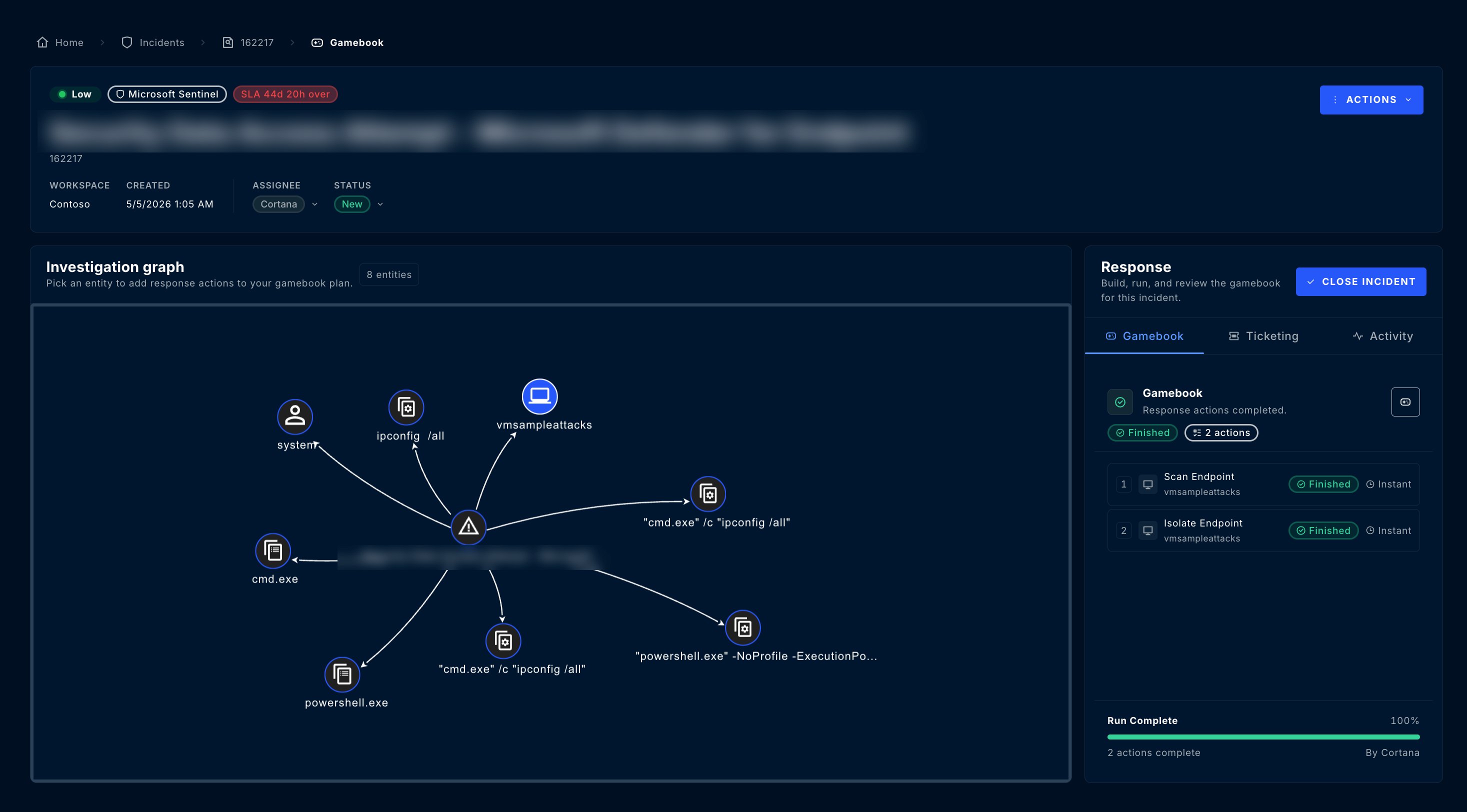 ## Building a Gamebook
Creating a Gamebook is intuitive—select entities, choose response actions, and execute.
### Step 1: Select an Entity
**Left-click** an entity in the Entity Context Graph (user, device, IP, etc.). The response action menu appears showing available response actions.
## Building a Gamebook
Creating a Gamebook is intuitive—select entities, choose response actions, and execute.
### Step 1: Select an Entity
**Left-click** an entity in the Entity Context Graph (user, device, IP, etc.). The response action menu appears showing available response actions.
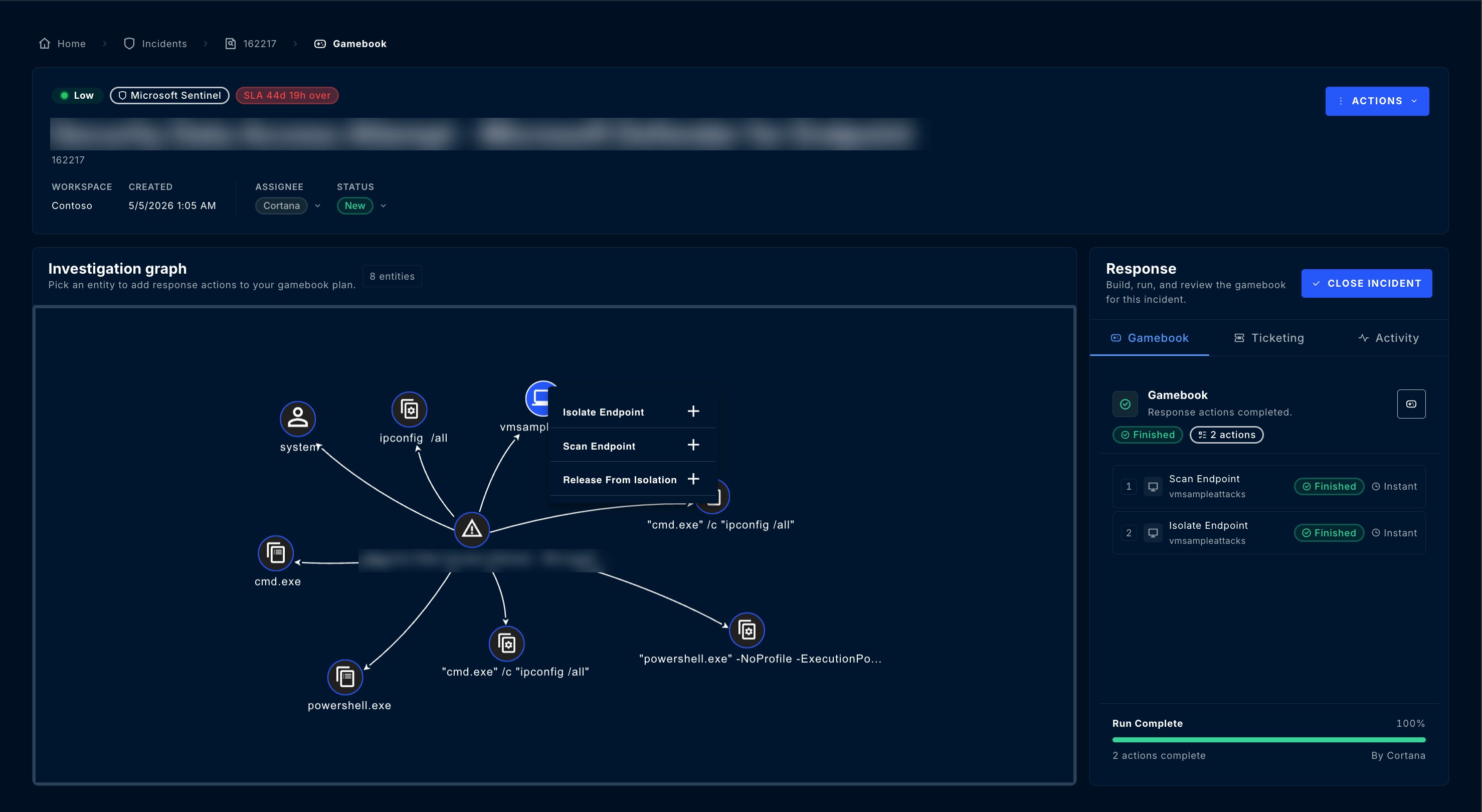 ### Step 2: Add Actions
* With the **left-click** menu open, select available response actions
* Click a response action to load it into the Gamebook
* Click the **red - icon** to remove an action
### Step 3: Repeat for Other Entities
Select additional entities and add their actions. You can build comprehensive response workflows targeting multiple entity types.
### Step 4: Review & Execute
Your selected actions appear in the **Gamebook Card**:
### Step 2: Add Actions
* With the **left-click** menu open, select available response actions
* Click a response action to load it into the Gamebook
* Click the **red - icon** to remove an action
### Step 3: Repeat for Other Entities
Select additional entities and add their actions. You can build comprehensive response workflows targeting multiple entity types.
### Step 4: Review & Execute
Your selected actions appear in the **Gamebook Card**:
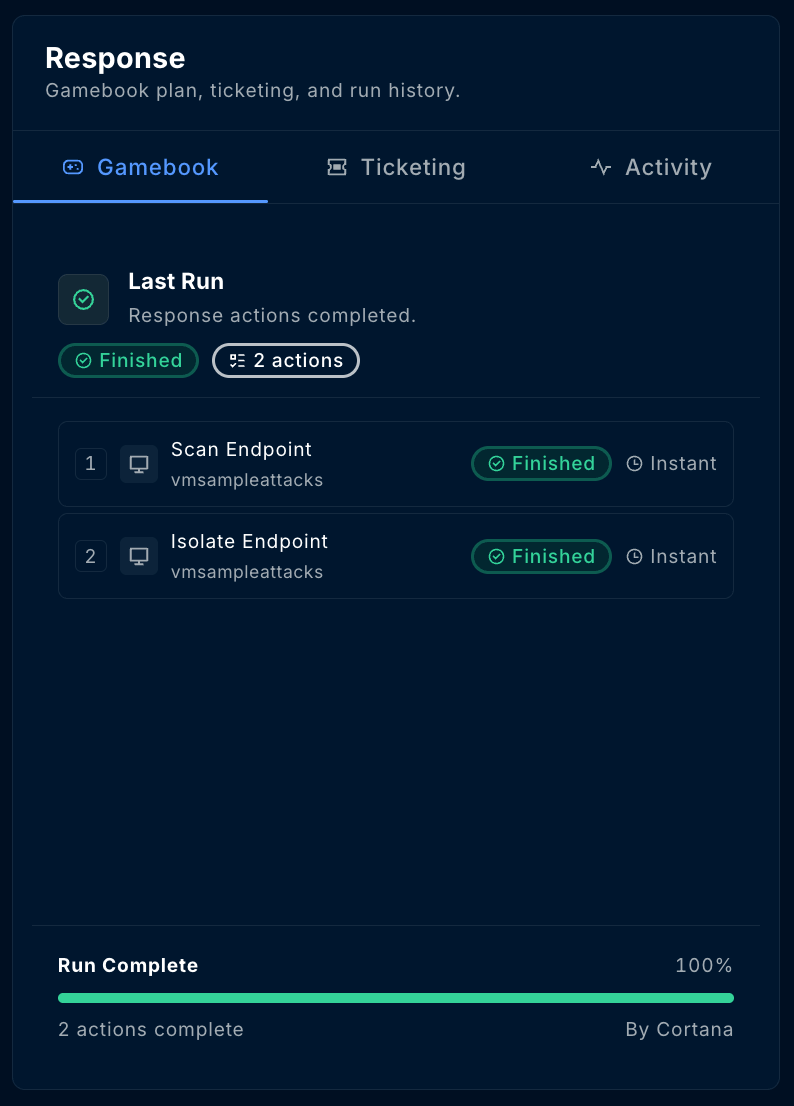 | Column | Description |
| ---------- | ----------------------------------- |
| **Action** | The response action to be performed |
| **Entity** | Target of the action |
| **Status** | "Pending" before execution |
Click **Run Gamebook** to execute all actions.
## Gamebook Execution Status
After clicking Run Gamebook, monitor the execution:
| Status | Meaning |
| ------------ | ------------------------------ |
| **Pending** | Action queued, not yet started |
| **Running** | Action currently executing |
| **Finished** | Action completed successfully |
| **Failed** | Action encountered an error |
If an action fails, check the Gamebook Activity page for error details. Common causes include permission issues or connectivity problems with the target system.
## Gamebook Approval Workflow
Manage the team members responsible for approving Gamebooks that require manual authorization. Only users with the **Workspace Owner** role can be assigned as Gamebook approvers.
### Gamebook Approval Configuration
Within each workspace settings page, under **General,** scroll to the bottom and configure the **Gamebook Configuration** settings based on your SOP for that specific workspace.
| Column | Description |
| ---------- | ----------------------------------- |
| **Action** | The response action to be performed |
| **Entity** | Target of the action |
| **Status** | "Pending" before execution |
Click **Run Gamebook** to execute all actions.
## Gamebook Execution Status
After clicking Run Gamebook, monitor the execution:
| Status | Meaning |
| ------------ | ------------------------------ |
| **Pending** | Action queued, not yet started |
| **Running** | Action currently executing |
| **Finished** | Action completed successfully |
| **Failed** | Action encountered an error |
If an action fails, check the Gamebook Activity page for error details. Common causes include permission issues or connectivity problems with the target system.
## Gamebook Approval Workflow
Manage the team members responsible for approving Gamebooks that require manual authorization. Only users with the **Workspace Owner** role can be assigned as Gamebook approvers.
### Gamebook Approval Configuration
Within each workspace settings page, under **General,** scroll to the bottom and configure the **Gamebook Configuration** settings based on your SOP for that specific workspace.
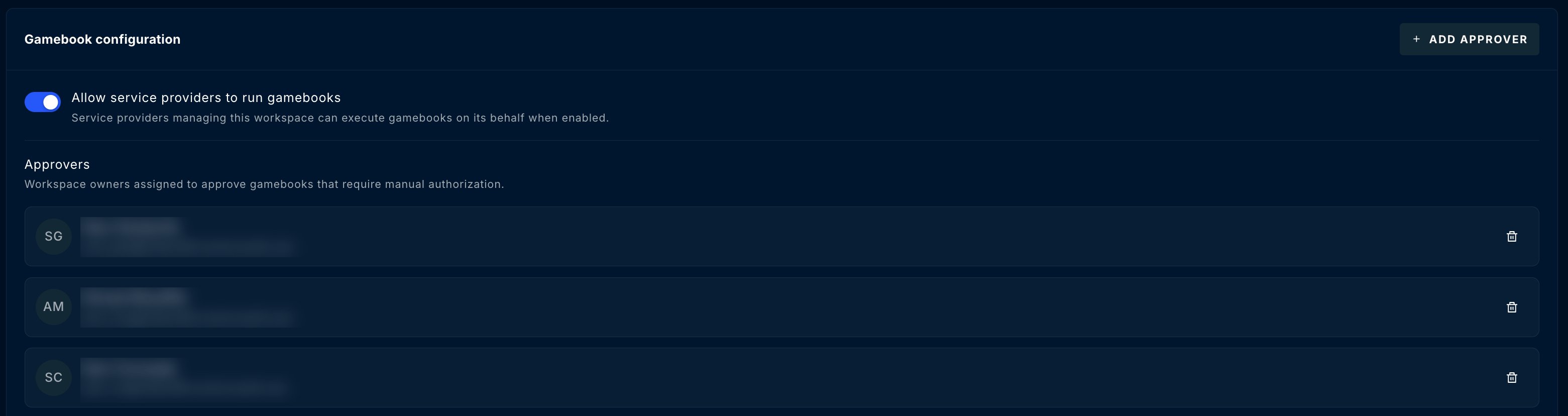 Some response actions (Reset user password) requires the end user of the workspace to have Cloud App Admin, Application Admin, or Global Admin role. As a Service Provider, you can approve this action on your end without the end user consent.
### Approving Gamebooks
Users with approval permissions can approve from:
Open the incident and approve directly from the Gamebook status
Review all pending approvals in one centralized queue
Once approved, the Gamebook executes automatically.
## Gamebook History
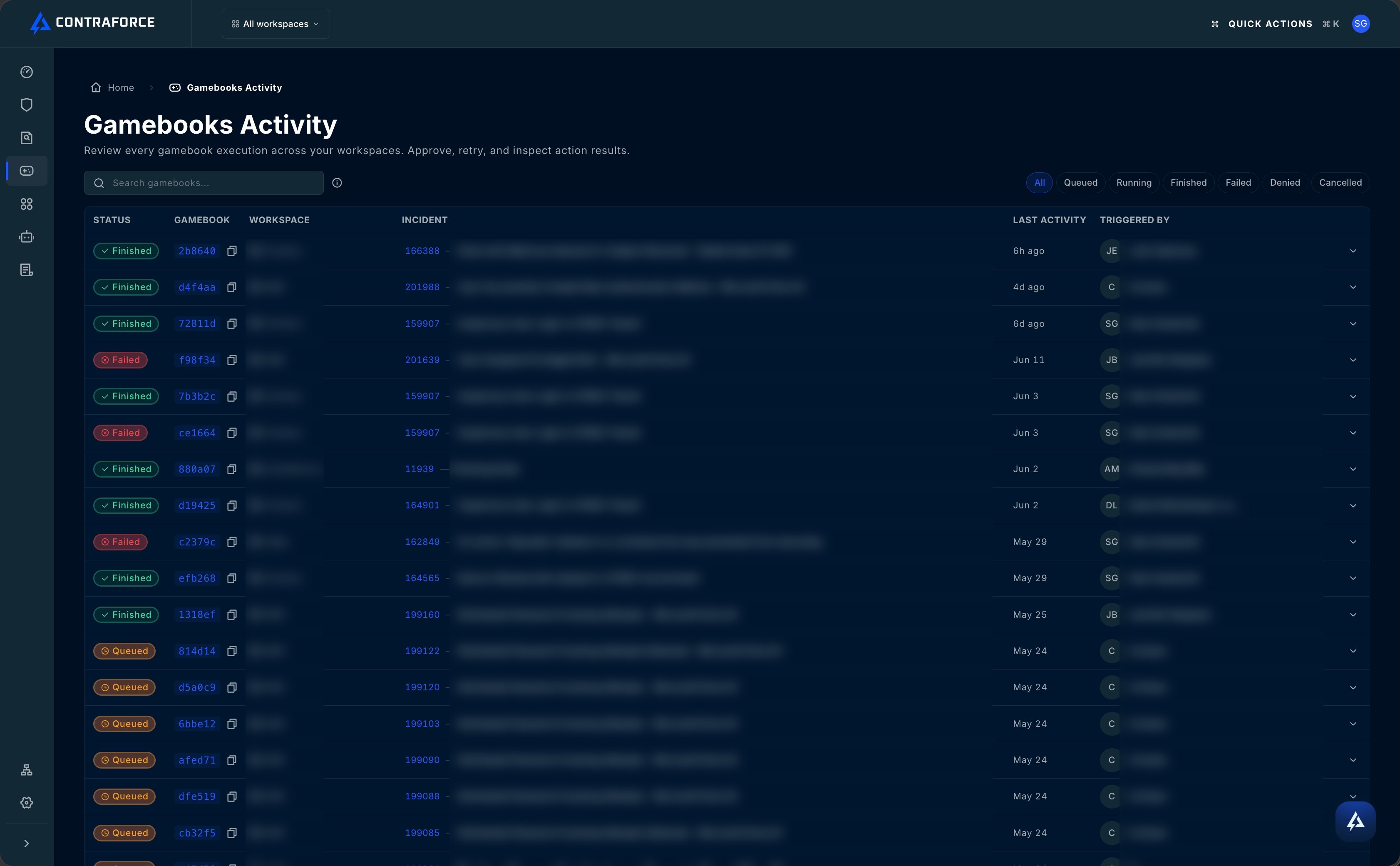
Track all Gamebook activity across your environment from the dedicated **Gamebooks Page**.
### Accessing Gamebook History
Click the **Gamebooks icon** (triangle) in the navigation bar—it's the 2nd icon from the top.
Some response actions (Reset user password) requires the end user of the workspace to have Cloud App Admin, Application Admin, or Global Admin role. As a Service Provider, you can approve this action on your end without the end user consent.
### Approving Gamebooks
Users with approval permissions can approve from:
Open the incident and approve directly from the Gamebook status
Review all pending approvals in one centralized queue
Once approved, the Gamebook executes automatically.
## Gamebook History
Track all Gamebook activity across your environment from the dedicated **Gamebooks Page**.
### Accessing Gamebook History
Click the **Gamebooks icon** (triangle) in the navigation bar—it's the 2nd icon from the top.
 ### What You Can See
The Gamebooks page shows:
| Filter | Description |
| -------------------- | ------------------------------- |
| **Completed** | Successfully executed Gamebooks |
| **Waiting Approval** | Pending approval requests |
| **Failed** | Gamebooks with errors |
### Viewing Details
Click the **dropdown arrow** on any row to expand and see:
* Individual action results
* Execution timestamps
* Error messages (if failed)
* Entity details
### What You Can See
The Gamebooks page shows:
| Filter | Description |
| -------------------- | ------------------------------- |
| **Completed** | Successfully executed Gamebooks |
| **Waiting Approval** | Pending approval requests |
| **Failed** | Gamebooks with errors |
### Viewing Details
Click the **dropdown arrow** on any row to expand and see:
* Individual action results
* Execution timestamps
* Error messages (if failed)
* Entity details
 Use the workspace filter to view Gamebook history for specific tenants. This is useful when reviewing activity for a particular customer.
## Unsupported Entities
Not all entity types support Gamebook actions due to technical limitations with module integrations.
**Common reasons:**
* Integration doesn't expose response APIs
* Entity type not yet supported
* Permissions not configured for response actions
If you need specific response capabilities, contact [support@contraforce.com](mailto:support@contraforce.com) to discuss your requirements.
## Best Practices
Prioritize actions that stop the threat from spreading—isolate devices, disable compromised accounts, block malicious IPs.
Configure approval requirements for actions like device isolation that could impact business operations.
Always verify the Gamebook Card shows the correct entities and actions before clicking Run.
Check the Gamebooks page regularly for failed actions that may need manual intervention.
After running a Gamebook, add comments to the incident explaining what actions were taken and why.
## Gamebook Actions Quick Reference
| Entity | Actions Available |
| ------------ | --------------------------------------------------------------- |
| **User** | Invalidate Sessions, Lockout, Reset Password, Reset MFA, Unlock |
| **Endpoint** | Isolate, Scan, Release from Isolation, Quarantine File |
| **Network** | Block IP |
| **Email** | Delete Email |
## Related Guides
Your toolset for security delivery
Complete incident workflow guide
Classify incidents after response
Configure approval permissions
***
Questions about Gamebooks? Contact us at [support@contraforce.com](mailto:support@contraforce.com).
Use the workspace filter to view Gamebook history for specific tenants. This is useful when reviewing activity for a particular customer.
## Unsupported Entities
Not all entity types support Gamebook actions due to technical limitations with module integrations.
**Common reasons:**
* Integration doesn't expose response APIs
* Entity type not yet supported
* Permissions not configured for response actions
If you need specific response capabilities, contact [support@contraforce.com](mailto:support@contraforce.com) to discuss your requirements.
## Best Practices
Prioritize actions that stop the threat from spreading—isolate devices, disable compromised accounts, block malicious IPs.
Configure approval requirements for actions like device isolation that could impact business operations.
Always verify the Gamebook Card shows the correct entities and actions before clicking Run.
Check the Gamebooks page regularly for failed actions that may need manual intervention.
After running a Gamebook, add comments to the incident explaining what actions were taken and why.
## Gamebook Actions Quick Reference
| Entity | Actions Available |
| ------------ | --------------------------------------------------------------- |
| **User** | Invalidate Sessions, Lockout, Reset Password, Reset MFA, Unlock |
| **Endpoint** | Isolate, Scan, Release from Isolation, Quarantine File |
| **Network** | Block IP |
| **Email** | Delete Email |
## Related Guides
Your toolset for security delivery
Complete incident workflow guide
Classify incidents after response
Configure approval permissions
***
Questions about Gamebooks? Contact us at [support@contraforce.com](mailto:support@contraforce.com).