

What Can You Do Here?
Audit Agent Activity
Review every execution an agent has performed, with timestamps and outcomes.
Troubleshoot Failures
Identify failed executions and investigate causes using status and token data.
Monitor Token Usage
Track AI token consumption per execution to understand cost and complexity.
Prerequisites
| Requirement | Description |
|---|---|
| Agent Center Deployed | Azure AI Foundry infrastructure must be provisioned. See Deploying Agent Center. |
| Security Delivery Agent Configured | At least one agent must be created and configured. See Configuring Security Delivery Agents. |
| ContraForce Roles | Organizational Admin or Agent Admin role required. |
Accessing Execution History
Select Your Agent
Click the name of the agent you want to review. This opens the Agent Details page.
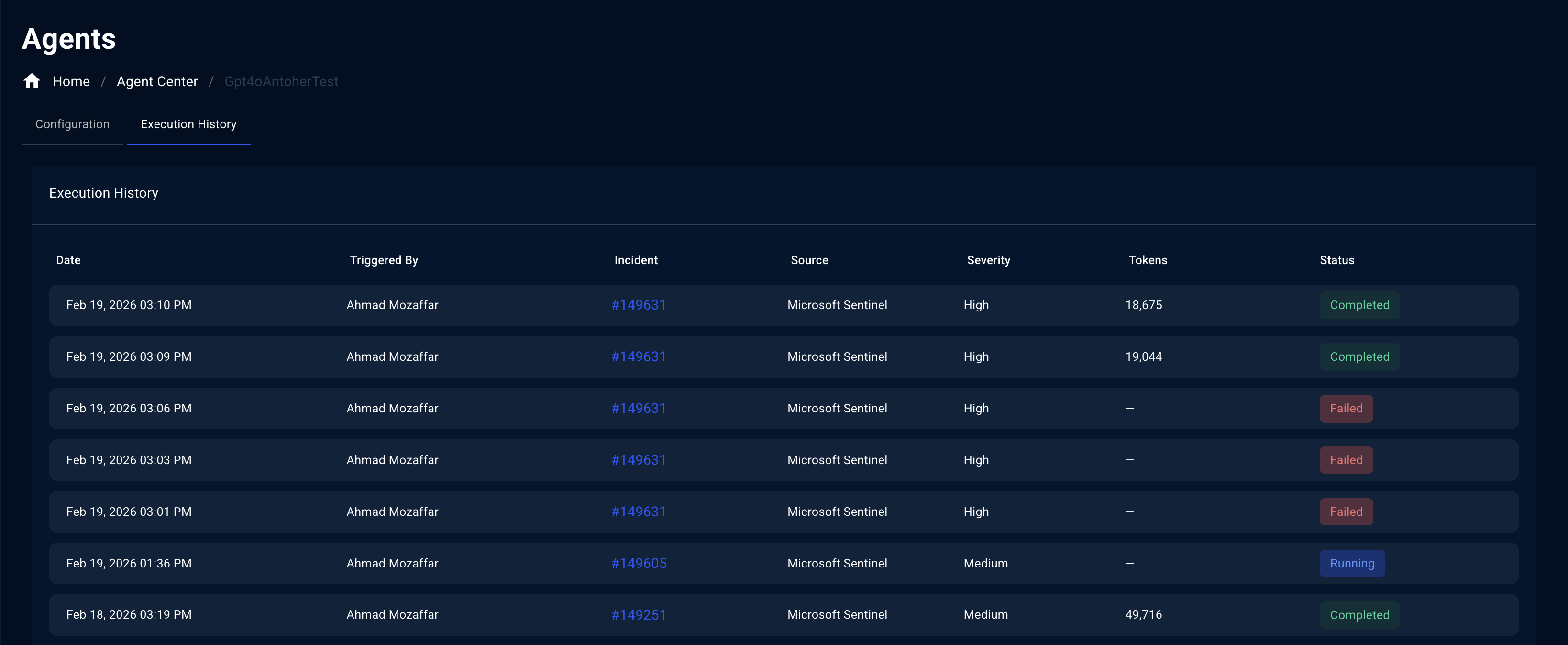
Understanding the Execution History Table
The Execution History table contains the following columns:| Column | Description |
|---|---|
| Date | Timestamp of when the agent execution occurred (e.g., Feb 19, 2026 03:10 PM). |
| Triggered By | The user or process that initiated the execution. Displays the name of the user for manual triggers (e.g., via the Actions menu) or auto-trigger events. |
| Incident | The incident number the agent processed. Displayed as a clickable link (e.g., #149631) that navigates directly to the incident detail page. |
| Source | The data source the incident originated from (e.g., Microsoft Sentinel, Microsoft Defender XDR). |
| Severity | The severity level of the incident: High, Medium, Low, or Informational. |
| Tokens | The number of AI tokens consumed during the execution. Displays — if the execution did not complete successfully. |
| Status | The current state of the execution, displayed as a color-coded badge. |
Execution Statuses
| Status | Color | Description |
|---|---|---|
| Completed | 🟢 Green | The agent successfully finished processing the incident. |
| Running | 🔵 Blue | The agent is currently processing the incident. |
| Failed | 🔴 Red | The execution encountered an error and did not complete. Token count will show —. |
Using Execution History
Investigate a Processed Incident
Click any Incident link (e.g.,#149631) in the table to navigate directly to that incident’s detail page. From there, you can review the full incident timeline, entity context graph, and any Gamebook actions that were executed.
Identify Failed Executions
Filter or scan for rows with a Failed status. Failed executions typically show— in the Tokens column, indicating the agent did not complete its analysis. Common causes include:
| Possible Cause | What to Check |
|---|---|
| Agent Center infrastructure issue | Verify the Logic App is enabled in the Azure Portal |
| Connectivity to data source | Confirm the workspace module consent is active |
| Token or rate limit exceeded | Review token consumption trends in recent executions |
| Incident no longer available | Check if the incident was deleted or merged in the source system |
Monitor Token Consumption
The Tokens column shows how many AI tokens were consumed per execution. This helps you understand the complexity of agent processing and monitor usage. Executions that involve larger incidents with more entities and evidence will typically consume more tokens.Best Practices
Review execution history regularly
Review execution history regularly
Check the Execution History tab periodically to confirm agents are processing incidents as expected. Look for patterns in failures, unexpected token spikes, or gaps in execution activity.
Investigate repeated failures on the same incident
Investigate repeated failures on the same incident
If the same incident appears multiple times with a Failed status, the issue is likely environmental (permissions, connectivity) rather than incident-specific. Check the troubleshooting table above.
Use execution data for compliance reporting
Use execution data for compliance reporting
The Execution History table serves as an audit trail for automated response activity. Use it to demonstrate that incidents were triaged and processed within your SLA requirements.
Correlate with Gamebook activity
Correlate with Gamebook activity
Cross-reference Execution History entries with the Gamebook Activity widget on the Command Dashboard to verify that agent-initiated Gamebooks completed successfully.
Troubleshooting
| Issue | Possible Cause | Solution |
|---|---|---|
| No entries in Execution History | Agent has not processed any incidents yet | Verify the agent Mode is set to On Queue, or manually trigger an investigation from an incident’s Actions menu |
| All executions show Failed | Agent Center infrastructure issue | Check that the Logic App is enabled in the Azure Portal and that Azure AI Foundry resources are healthy |
| Incident link returns an error | Incident was deleted or merged | Verify the incident exists in the source system (Sentinel or Defender XDR) |
Token column shows — | Execution failed before completion | Review the Status column — failed executions do not record token usage |
| Execution History tab not visible | Feature not available in your environment | Confirm Agent Center is deployed and you have the required roles |
Related Guides
Configuring Security Delivery Agents
Set up and configure agents using the three-phase adoption model.
Deploying Agent Center
Deploy the Azure AI Foundry infrastructure required for agents.
Incident Management
Learn how incidents flow through ContraForce.
Command Dashboard
Monitor agent activity and incident trends from mission control.
Questions about Agent Execution History? Contact us at support@contraforce.com.