

Think of Gamebooks as your incident response playbook—automated. No API mapping, no coding, no scripting. Select the response actions you need, click run, and ContraForce handles the execution across your integrated security tools. AI agents can autonomously choose the correct response actions based on entity types and the classification of the incident.
Why Gamebooks?
Traditional incident response requires analysts to:- Identify affected entities (users, devices)
- Log into each security tool separately
- Manually execute containment actions
- Document what was done
One Click
Execute multiple actions across tools instantly
Consistent
The right response every time
Auditable
Complete history of every action taken
Compiled Automatically by Your AI Agents
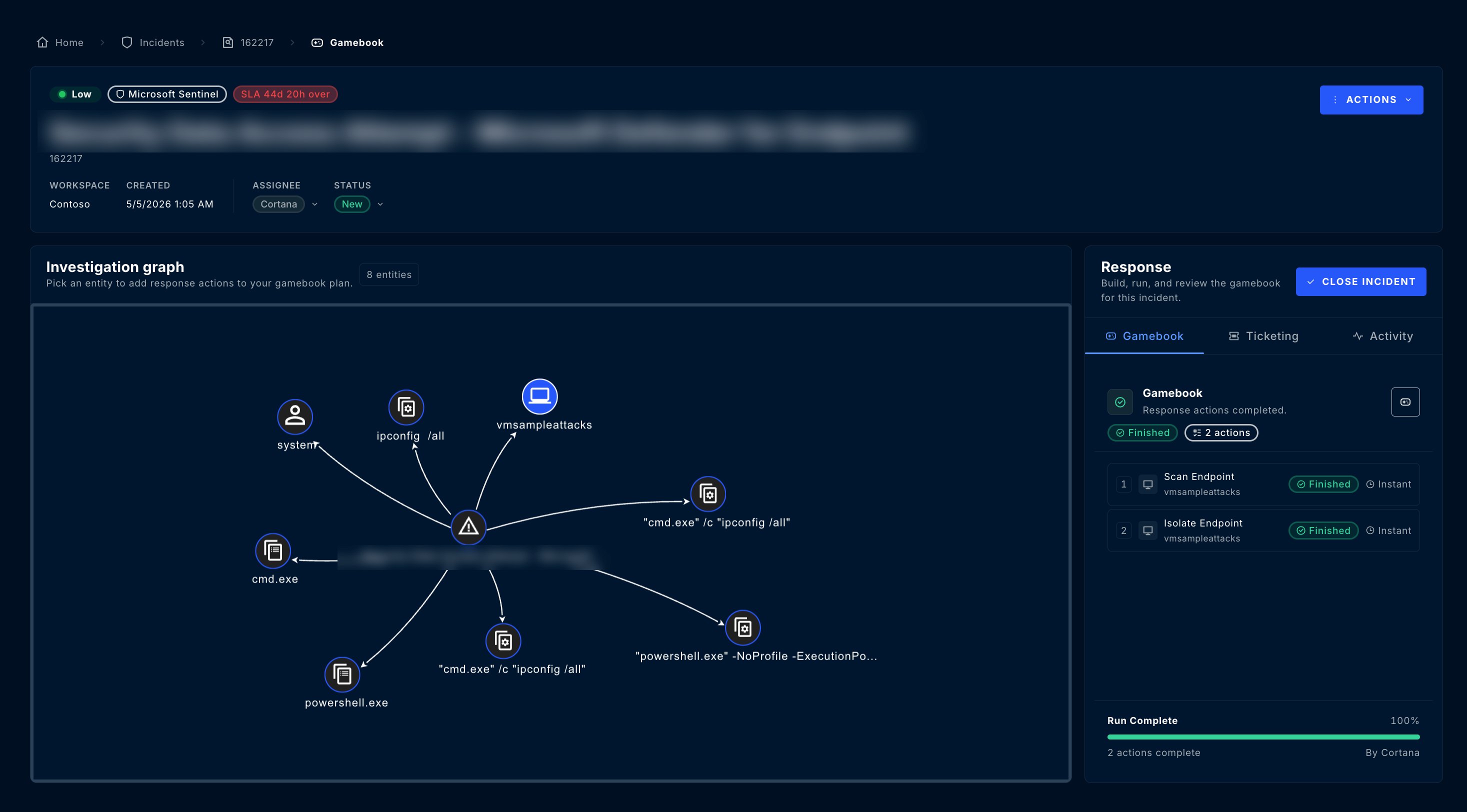
You don’t have to assemble the response yourself. When a Security Delivery Agent investigates an incident, it builds an investigation graph — the same Entity Context Graph you see in the Workbench — to determine exactly which entities the incident impacted. The agent then compiles the Gamebook for you, mapping the appropriate response actions to each impacted entity based on entity type and the incident’s classification. You can still add or remove actions before it runs.Available Gamebook Actions
Gamebook actions are organized by entity type. ContraForce automatically shows relevant actions based on the entities involved in each incident.User Actions
Endpoint Actions
Network Actions
Email Actions
How to Access Gamebooks
1
Open an Incident
From the Incidents page, open an incident and select View full details
2
Open the Gamebook Workbench
Select the Gamebooks Workbench icon next to Actions. You can also build a response plan in the incident’s Response → Gamebook builder.
3
Start Building
The Gamebook Workbench opens with the Entity Context Graph
Building a Gamebook
Creating a Gamebook is intuitive—select entities, choose response actions, and execute.Step 1: Select an Entity
Left-click an entity in the Entity Context Graph (user, device, IP, etc.). The response action menu appears showing available response actions.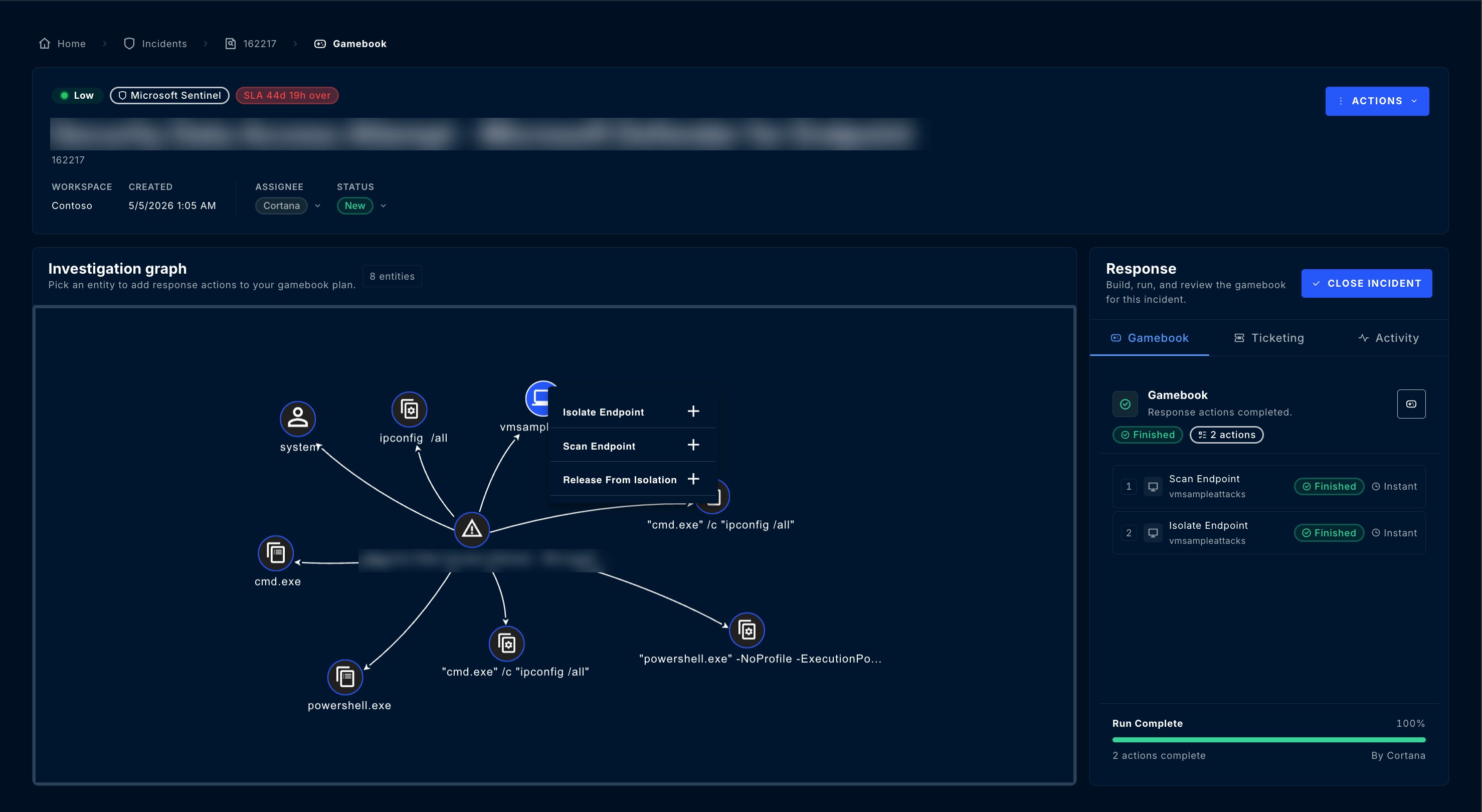
Step 2: Add Actions
- With the left-click menu open, select available response actions
- Click a response action to load it into the Gamebook
- Click the red - icon to remove an action
Step 3: Repeat for Other Entities
Select additional entities and add their actions. You can build comprehensive response workflows targeting multiple entity types.Step 4: Review & Execute
Your selected actions appear in the Gamebook Card: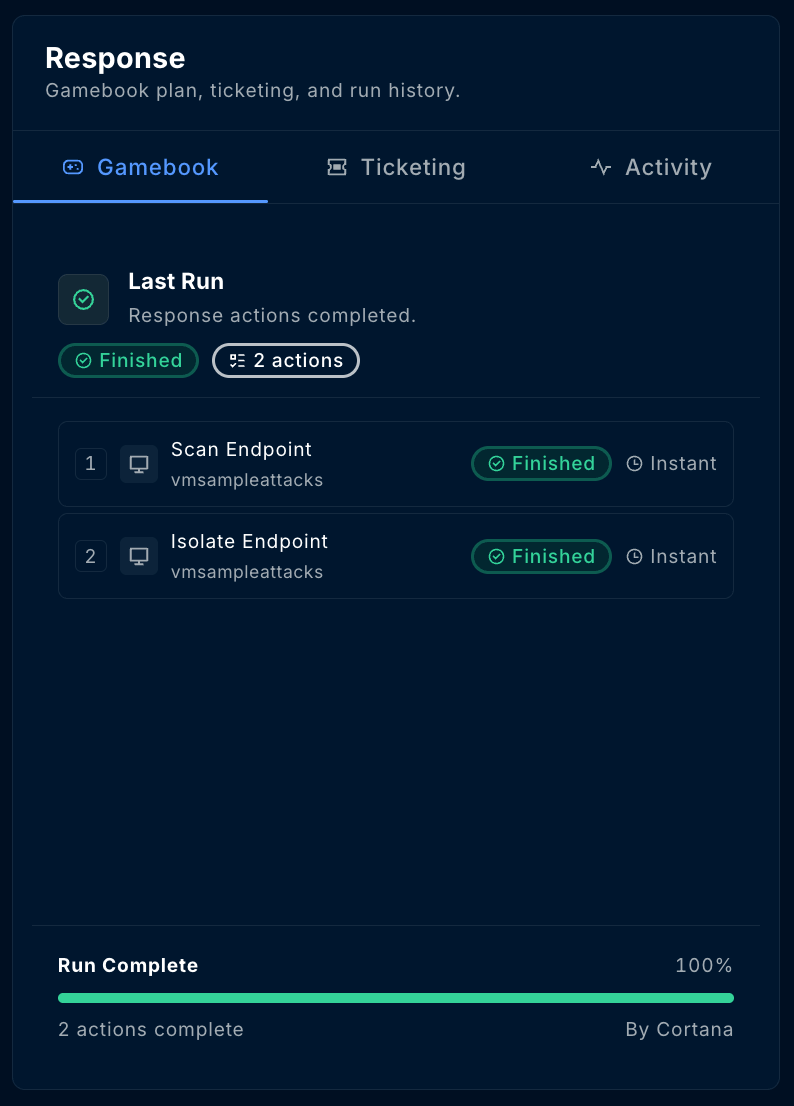
Click Run Gamebook to execute all actions.
Gamebook Execution Status
After clicking Run Gamebook, monitor the execution:Gamebook Approval Workflow
Manage the team members responsible for approving Gamebooks that require manual authorization. Only users with the Workspace Owner role can be assigned as Gamebook approvers.Gamebook Approval Configuration
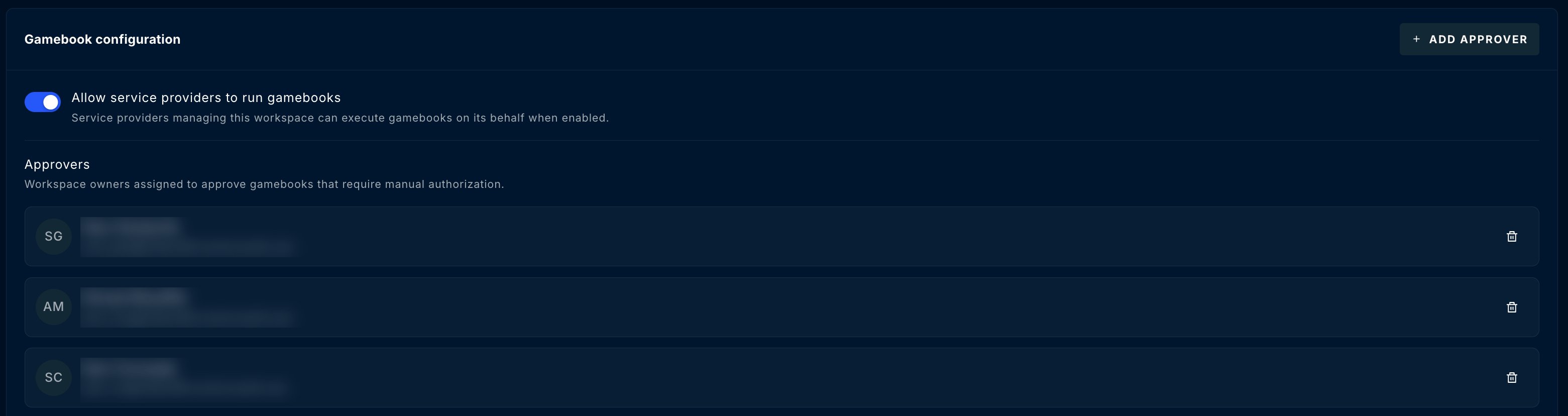
Open Workspaces → [workspace] → Gamebooks and configure the Gamebook configuration based on your operating procedures for that workspace:- Allow service providers to run gamebooks — lets the service providers that manage the workspace run Gamebooks on its behalf
- Approvers — the Workspace Owners who approve Gamebooks that require manual authorization
- Run policies — ordered rules, checked top to bottom, that block an action, allow it, or send it to an approver first; if none match, the action is allowed
Approving Gamebooks
Users with approval permissions can approve from:Incident Summary
Open the incident and approve directly from the Gamebook status
Gamebooks Page
Review all pending approvals in one centralized queue
Gamebook History
Track all Gamebook activity across your environment from the dedicated Gamebooks Page.Accessing Gamebook History
Click the Gamebooks icon (triangle) in the navigation bar—it’s the 2nd icon from the top.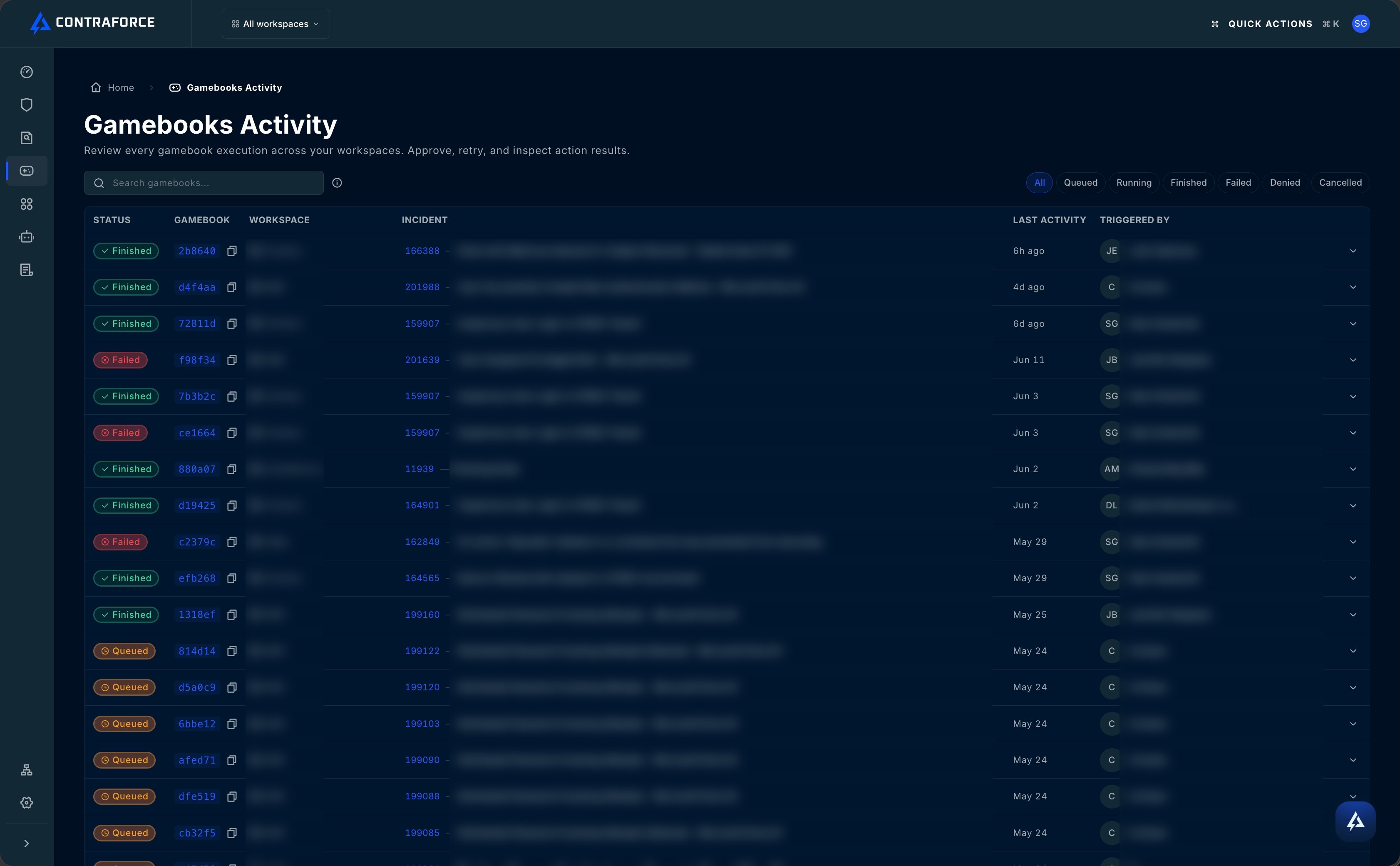
What You Can See
The Gamebooks page shows:Viewing Details
Click the dropdown arrow on any row to expand and see:- Individual action results
- Execution timestamps
- Error messages (if failed)
- Entity details

Unsupported Entities
Not all entity types support Gamebook actions due to technical limitations with module integrations. Common reasons:- Integration doesn’t expose response APIs
- Entity type not yet supported
- Permissions not configured for response actions
If you need specific response capabilities, contact support@contraforce.com to discuss your requirements.
Best Practices
Start with containment
Start with containment
Prioritize actions that stop the threat from spreading—isolate devices, disable compromised accounts, block malicious IPs.
Use approval workflows for high-impact actions
Use approval workflows for high-impact actions
Configure approval requirements for actions like device isolation that could impact business operations.
Review before running
Review before running
Always verify the Gamebook Card shows the correct entities and actions before clicking Run.
Monitor the Gamebooks page
Monitor the Gamebooks page
Check the Gamebooks page regularly for failed actions that may need manual intervention.
Document with comments
Document with comments
After running a Gamebook, add comments to the incident explaining what actions were taken and why.
Gamebook Actions Quick Reference
Related Guides
Workbench Overview
Your toolset for security delivery
Incident Management
Complete incident workflow guide
Incident Classifications
Classify incidents after response
User Management
Configure approval permissions
Questions about Gamebooks? Contact us at support@contraforce.com.