

Recommended Default Groups
Setting up default groups during initial configuration saves time and ensures consistent access patterns. Suggested Partner GroupsFor Azure Administrators
For MSP/MSSP teams already fluent in Azure and Entra administration, ContraForce’s user and group management model will feel intuitive once you establish these mental mappings:The key transferable skill is thinking hierarchically about access scope—a discipline your team has already developed managing Azure governance at scale.
- Organization = Root Management Group: The top-level scope where you establish identities that can flow down
- Workspace = Subscription / Administrative Unit: The isolation boundary where customer-specific access lives
- Organization Groups = Inherited RBAC: Create once, assign many times, automatic access when group membership changes
- Workspace Users = AU-scoped delegation: Strictly bounded to one customer’s data
- Two locations = Two scopes: Just like Azure has IAM blades at different levels, ContraForce has Organization Settings and Workspace Settings
Understanding the Two-Tier Model
ContraForce uses a two-tier user management model that separates partner-level access from customer-level access. This is the most important concept to understand before configuring users and groups.Parent (Partner) Level
Child (Customer) Level
How the Tiers Work Together
The Two Places for User & Group Management
One of the most common points of confusion is that there are two different locations to manage users and groups, each serving a different purpose.Location 1: Organization Settings (Partner Level)
Path: Settings → User Management This is where you manage users and groups for your partner organization: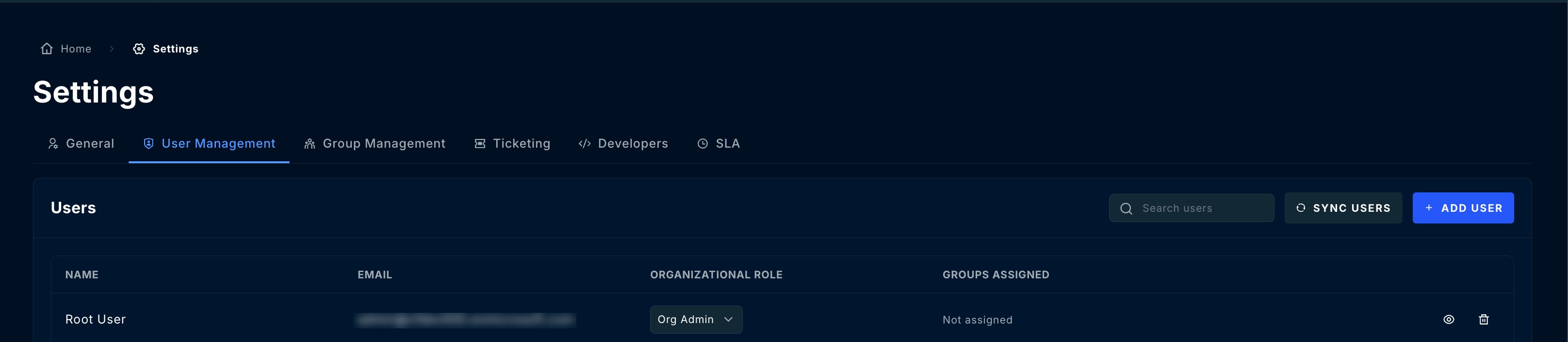
Location 2: Workspace Settings (Customer Level)
Path: Workspaces → [Select Customer] → IAM → Users & Groups This is where you manage users and groups for a specific customer workspace: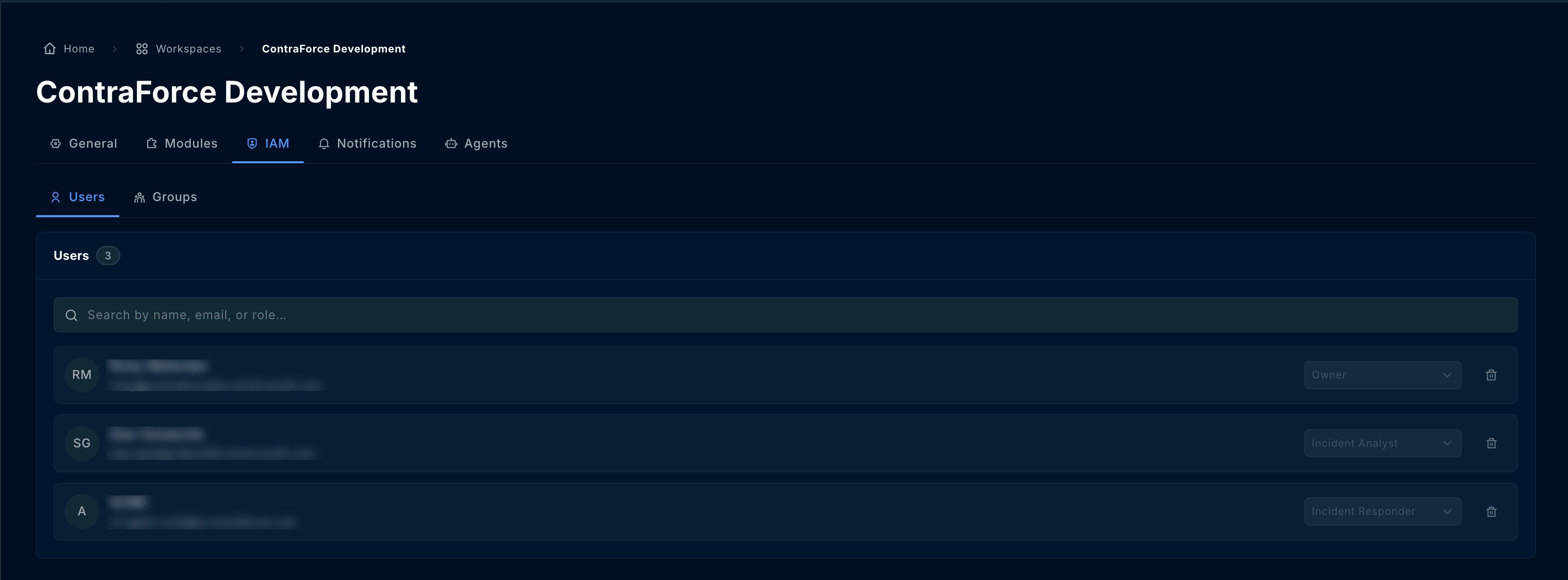
Quick Reference: Where to Go
Parent vs Child: When to Use Each
Use Parent (Organization) Level When:
Adding your own team members (SOC analysts, engineers)
Adding your own team members (SOC analysts, engineers)
Creating groups for your internal teams
Creating groups for your internal teams
Setting up cross-workspace permissions
Setting up cross-workspace permissions
Use Child (Workspace) Level When:
Adding customer users who only access their own data
Adding customer users who only access their own data
Creating customer-specific groups
Creating customer-specific groups
Granting limited access to customer stakeholders
Granting limited access to customer stakeholders
Step-by-Step: Setting Up Partner Users
Adding a Partner Team Member
Navigate to Organization Settings
Click Add User
Enter User Details
Assign Organizational Role
- Org Admin: full control of the organization, including roles and API keys
- User Admin: manages users and groups
- Workspace Admin: adds and manages customer workspaces and who can access them
- Agent Admin: deploys and configures agents
- Member: standard access to the workspaces they are assigned to
Save User
Assign to Workspaces
Assigning Users to Customer Workspaces
After creating a user at the organization level, grant them access to customer workspaces:Go to Workspaces
Select Customer Workspace
Open Workspace Settings
Go to Users & Groups
Add User or Group
Assign Workspace Role
- Owner: full workspace control, including users, modules and settings
- Content Admin: manages analytic rules and works incidents
- Incident Responder: works incidents and runs Gamebooks
- Incident Analyst: works incidents and requests approval to run Gamebooks
- Workspace Reader: read-only access
Step-by-Step: Setting Up Groups
Groups simplify permission management by letting you assign roles to multiple users at once.Creating an Organization Group
Navigate to Organization Settings
Click Create Group
Name the Group
Add Members
Save Group
Assigning a Group to Workspaces
Go to Workspace Settings
Click Add Group
Select Organization Group
Assign Role
Save
Recommended Default Groups
Setting up default groups during initial configuration saves time and ensures consistent access patterns.Suggested Partner Groups
Setting Up Default Groups
Create Groups First
Add Team Members
Document Group Purposes
Apply to New Workspaces
Common Permission Scenarios
Scenario 1: New SOC Analyst Joining Your Team
Goal: Add a new analyst who needs to handle incidents for all customers.Create User at Organization Level
Add to SOC Group
Verify Workspace Access
Scenario 2: Customer Wants to View Their Incidents
Goal: Give a customer’s security team read-only access to their workspace.Go to Customer Workspace
Add Customer User
Assign Reader Role
Scenario 3: Partner User Can’t Access a Workspace
Goal: Troubleshoot why a partner user can’t see a specific customer workspace.Check Organization Membership
Check Group Membership
Check Workspace Assignment
Check Role Assignment
Scenario 4: User Has Wrong Permissions
Goal: User can work incidents but can’t run Gamebooks or response actions. Cause: User has “Incident Analyst” role (which can only request approval to run Gamebooks) instead of “Incident Responder.”Go to Workspace Settings
Find the User or Group
Update Role
Save Changes
Workspace Roles Reference
Full Roles Reference
Troubleshooting
Common Issues
Permission Troubleshooting Flow
Best Practices
Create groups before onboarding customers
Create groups before onboarding customers
Use groups instead of individual user assignments
Use groups instead of individual user assignments
Document your group-to-role mappings
Document your group-to-role mappings
Keep customer users at the workspace level only
Keep customer users at the workspace level only
Use consistent naming conventions
Use consistent naming conventions
Audit permissions periodically
Audit permissions periodically
Test with a non-admin account
Test with a non-admin account
Onboarding Checklist
Use this checklist when onboarding a new customer workspace:Pre-Onboarding (One-Time Setup)
- Create standard organization groups (SOC Tier 1, Tier 2, etc.)
- Add your team members to appropriate groups
- Document group-to-role mappings
Per-Customer Onboarding
- Create/configure customer workspace
- Assign organization groups to workspace with appropriate roles
- Verify partner team can access the workspace
- Add customer users at workspace level (if needed)
- Create customer-specific groups (if needed)
- Test access with a non-admin account
- Document any customer-specific permission requirements
Frequently Asked Questions
Why are there two places to manage users?
Why are there two places to manage users?
Can a customer user see other customers' data?
Can a customer user see other customers' data?
What's the fastest way to give a new analyst access to all customers?
What's the fastest way to give a new analyst access to all customers?
Can I have different roles for the same user in different workspaces?
Can I have different roles for the same user in different workspaces?
What happens if I remove a user from a group?
What happens if I remove a user from a group?
Can customers manage their own users?
Can customers manage their own users?