

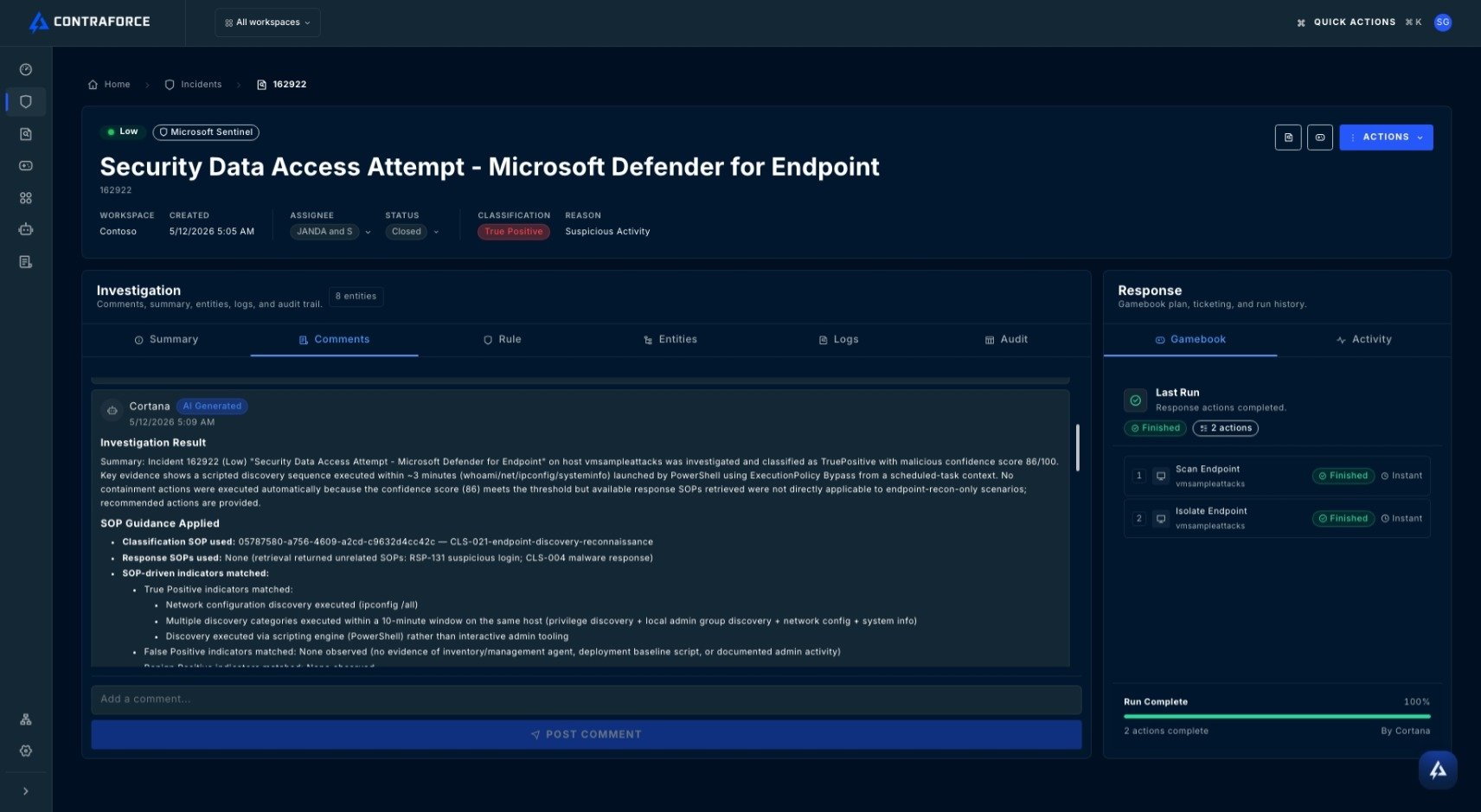
What is the Workbench?
The Workbench combines investigation and response into one powerful experience:AI-Mapped Response Actions
Automatically recommended response actions based on affected entity types
Entity and Context Graph Visualization
See all related entities in an interactive context graph
No-Code Queries
Click-through investigation for entities without writing queries
Custom Workflows
Chain multiple actions into comprehensive Gamebooks
The Workbench is where investigation meets action. Instead of switching between tools, you can analyze the threat and respond to it in the same place.
Accessing the Workbench
1
Open an Incident
From the Incidents page, open an incident and select View full details
2
View the Summary
The Incident Summary opens with overview information
3
Open the Workbench
Select the Gamebooks Workbench icon next to Actions
Workbench Layout
The Security Workbench is organized into several key areas:Incident Header
At the top of the Workbench, you’ll find:Entity Graph
The central visualization showing all entities involved in the incident:- Users — Accounts that were affected or involved
- Devices — Endpoints implicated in the incident
- IPs — Network addresses related to the activity
- Files — Suspicious files or hashes detected
- URLs/Domains — Web resources involved
- View entity details
- See other incidents involving this entity
- Access available response actions
Tabs
- Summary
- Entities
- Comments
- History
Overview of the incident including description, timeline summary, and key indicators.
Building a Gamebook
Gamebooks are response workflows made up of response actions for each affected entity — you build them yourself, or a Security Delivery Agent compiles one for you.An agent-compiled Gamebook arrives already populated: the agent identifies the impacted entities from the graph above and maps the appropriate response actions to each one. It loads into the same Gamebook card, so you review and run it exactly as described below. See Configuring Security Delivery Agents.
Step 1: Select an Entity
Left-click an entity icon in the Entity Context Graph. The response actions appear already mapped to the entity type selected.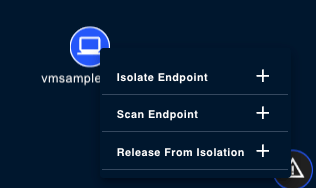
Step 2: Browse Available Actions
By left-clicking entities, you will be able to utilize the following response actions:Available actions depend on the entity type and your connected modules. Gamebook response actions automatically map to actions that are relevant and executable.
Step 3: Add Actions to Gamebook
- Click the + icon to add a response action to your Gamebook
- Hover over the action in the Gamebook and the red - icon will remove a response action
- Repeat for each entity you want to take action on
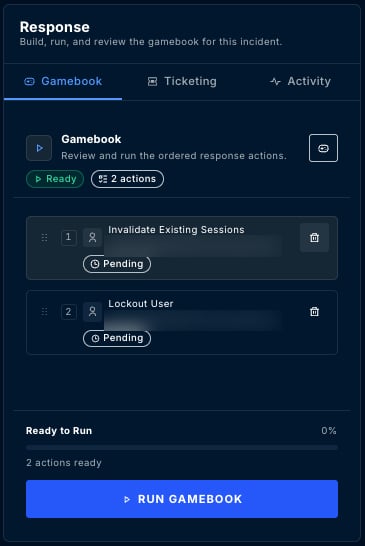
Step 4: Review Your Gamebook
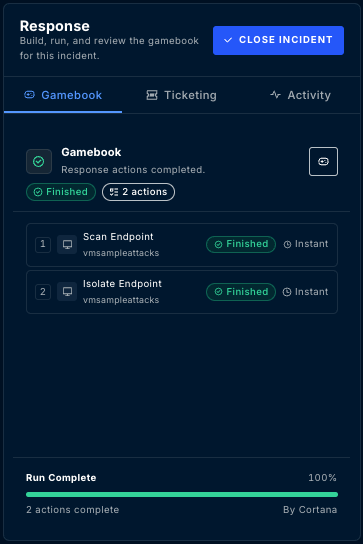
As you add actions, they load in the Gamebook card.Step 5: Execute the Gamebook
1
Review Response Actions
Verify all actions in the Gamebook are correct
2
Click Run Gamebook
Execute all actions in the Gamebook
3
Monitor Progress
Status updates from “Pending” to “Running” to “Finished”
Gamebook Approval Workflow
Some Gamebooks require approval before execution, indicated by a **Approve **button in the Gamebooks page or in the Gamebook within the Workbench.Requesting Approval
- Build your Gamebook as usual (including locked actions)
- Click Request Gamebook Approval instead of Run Gamebook
- The request is sent to users with approval permissions
Approving Gamebooks
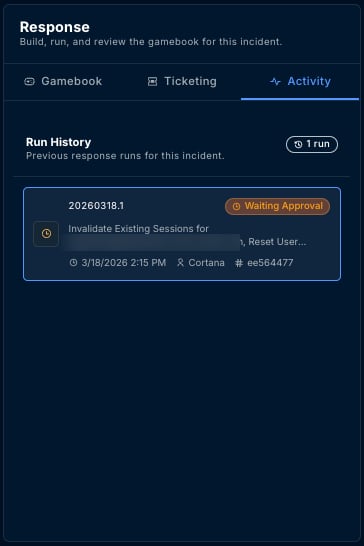
Approvers can approve requests from:- The incident itself — Open the incident and approve directly
-
Gamebook Activity tab — Review all pending approvals in one place
-
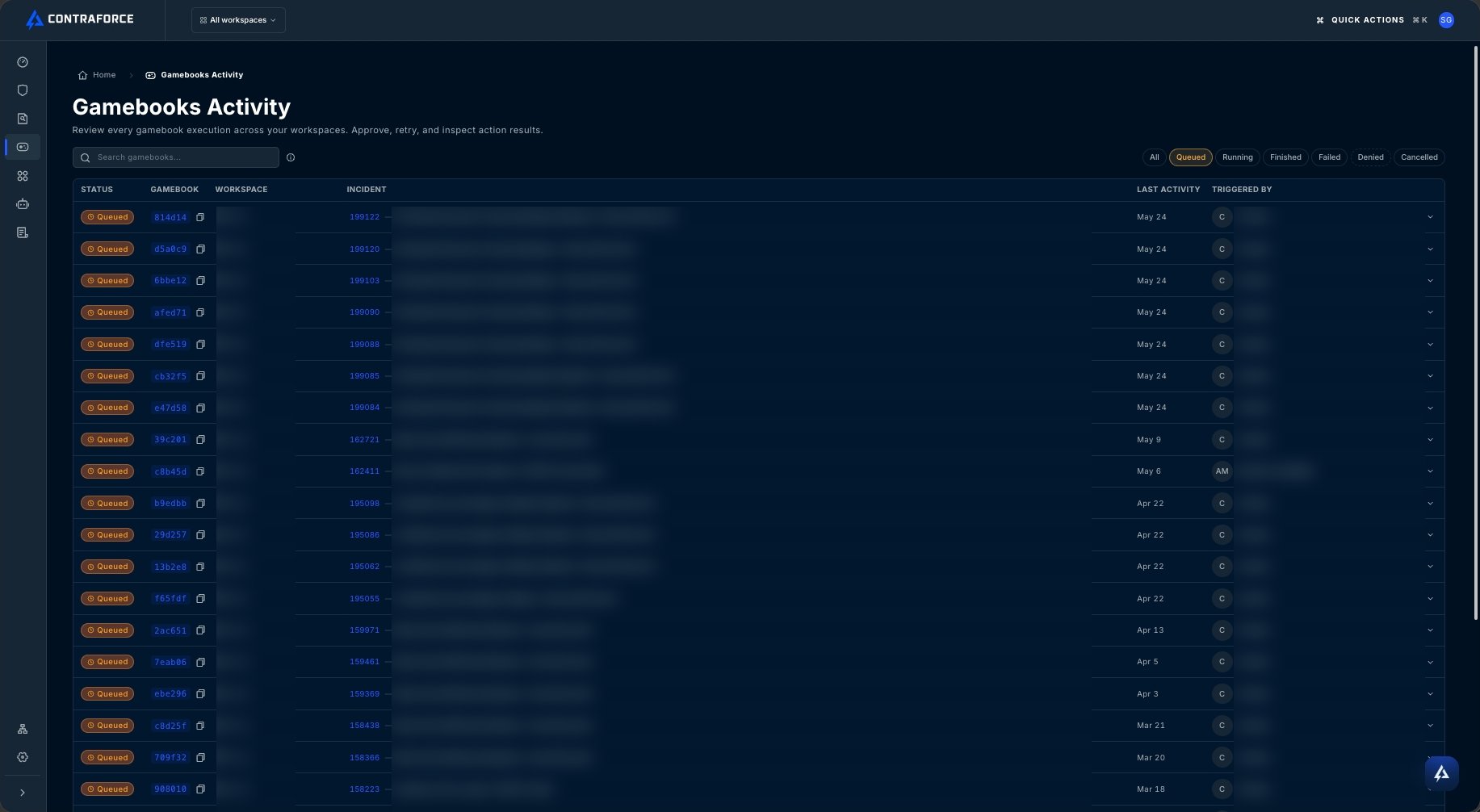
Gamebook Activity page — Review all pending approvals in one place
Gamebook Activity Page
Track all Gamebooks in one queue across your every workspace from the dedicated Gamebooks Page.What You Can See
Expanding Details
Click any row to expand and see:- Individual action results
- Error messages (if any failed)
- Timestamps for each step
- Entity details
Best Practices
Start with high-impact entities
Start with high-impact entities
Focus your initial response on the most critical entities—compromised users, infected devices, or malicious IPs that pose immediate risk.
Use comments to document findings
Use comments to document findings
Add comments as you investigate. This creates a record for your team and helps with post-incident review.
Review before executing
Review before executing
Always review the complete Gamebook Card before clicking Run. Verify you’re taking action on the correct entities.
Check History for patterns
Check History for patterns
Before building a new Gamebook, check the History tab. A previous response may already exist that you can reuse or adapt.
Monitor the Gamebook Activity page
Monitor the Gamebook Activity page
Regularly check the Gamebook Activity page to ensure actions completed successfully and catch any failures early.
Related Guides
What are Gamebooks?
Deep dive into Gamebook capabilities.
Incident Management
Complete incident workflows.
Entity Insights
Available entity enrichment data.
Incident Classifications
Classify incidents after resolution.
Need help with the Security Workbench? Contact us at support@contraforce.com