

ContraForce empowers analysts to efficiently manage incidents across multiple workspaces and data sources. This workflow is designed to help you resolve incidents faster and deliver better service to your customers.
Workflow Overview
1
Filter Incidents
Focus on specific workspaces or assignees, or view all incidents across your environment
2
Assign Incidents
Route incidents to the appropriate analyst
3
Investigate
Review the incident summary, entities, timeline, and evidence
4
Respond with Gamebooks
Execute automated response actions with one click
5
Close the Incident
Document findings and close with proper classification
1. Filtering Incidents
The Incidents page lets you filter the incidents it shows by workspace, source, severity, status, classification, reason, and assignee. The workspace selection persists as you navigate between pages in ContraForce.Setting Your Workspace Filter
1
Open the Filter
Click the workspace selector in the top bar
2
Select Workspaces
Choose one or more workspaces to display
3
View Filtered Results
The Incidents table updates to show only data from selected workspaces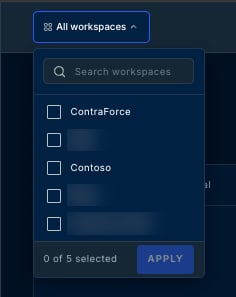
Filtering by Assignee
1
Open the Assignee Filter
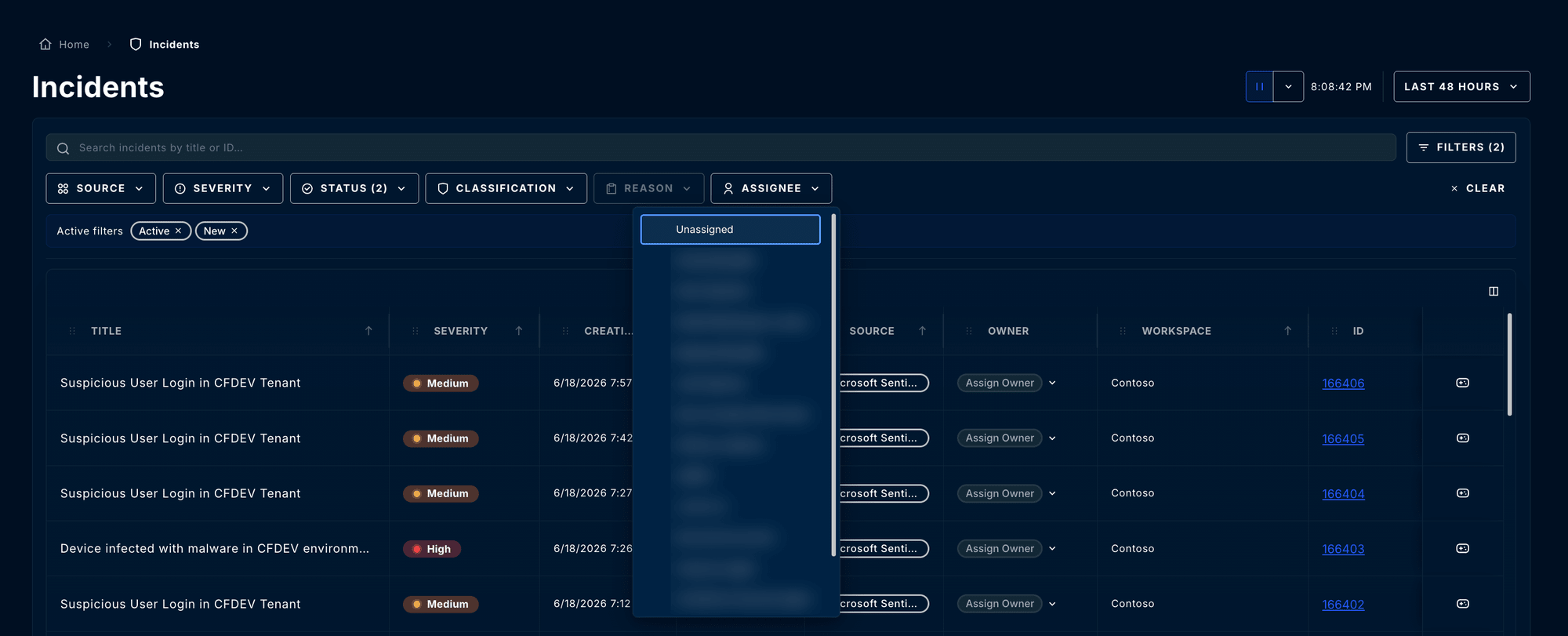
On the Incidents page, open the Assignee filter
2
Select Assignees
Choose one or more assignees to display
3
View Filtered Results
The Incidents table updates to show only incidents from selected assignees
Additional Filters
Beyond workspace filtering, you can further refine your view:
In a workspace with both the Microsoft Sentinel and Defender XDR detection modules connected, an incident that Microsoft mirrors between the two appears in your queue once, not twice. See Incident Deduplication.
2. Incident Assignment
Proper incident assignment ensures the right analyst handles each incident and provides clear ownership for tracking.Individual Assignment
To assign a single incident:- Locate the incident in the Incidents table
- Click the dropdown in the Owner column
- Select an analyst from the list of portal users
Ownership is recorded in ContraForce for every incident source, including SentinelOne and CrowdStrike, whose APIs cannot carry a ContraForce analyst as the assignee. For SentinelOne this is ContraForce-only: the threat stays unassigned in the SentinelOne console (see SentinelOne Detection and Response Modules). For CrowdStrike you can optionally mirror assignments onto the Falcon alert as a bound service account — see Assignment Writeback.
Handling Incidents at Scale
Select multiple incidents in the Incidents table to close or reassign them in one action. A bulk close applies a single classification, reason, and optional comment across the selection; a bulk reassign sets one owner, or unassigns. Both work across a selection that spans workspaces and incident sources. For hands-off triage, Security Delivery Agents running on queue automatically triage and act on incidents in bulk as they arrive, so you don’t have to process them batch by batch. See Configuring Security Delivery Agents.3. Incident Summary
The Incident Summary provides a complete view of an incident with all the context you need for investigation.Accessing the Summary
Click an incident in the Incidents table to open a quick view with its Summary, Comments, and Audit. Use the arrows to step to the previous or next incident in the queue, and select View full details for the full incident page with all of the tabs below.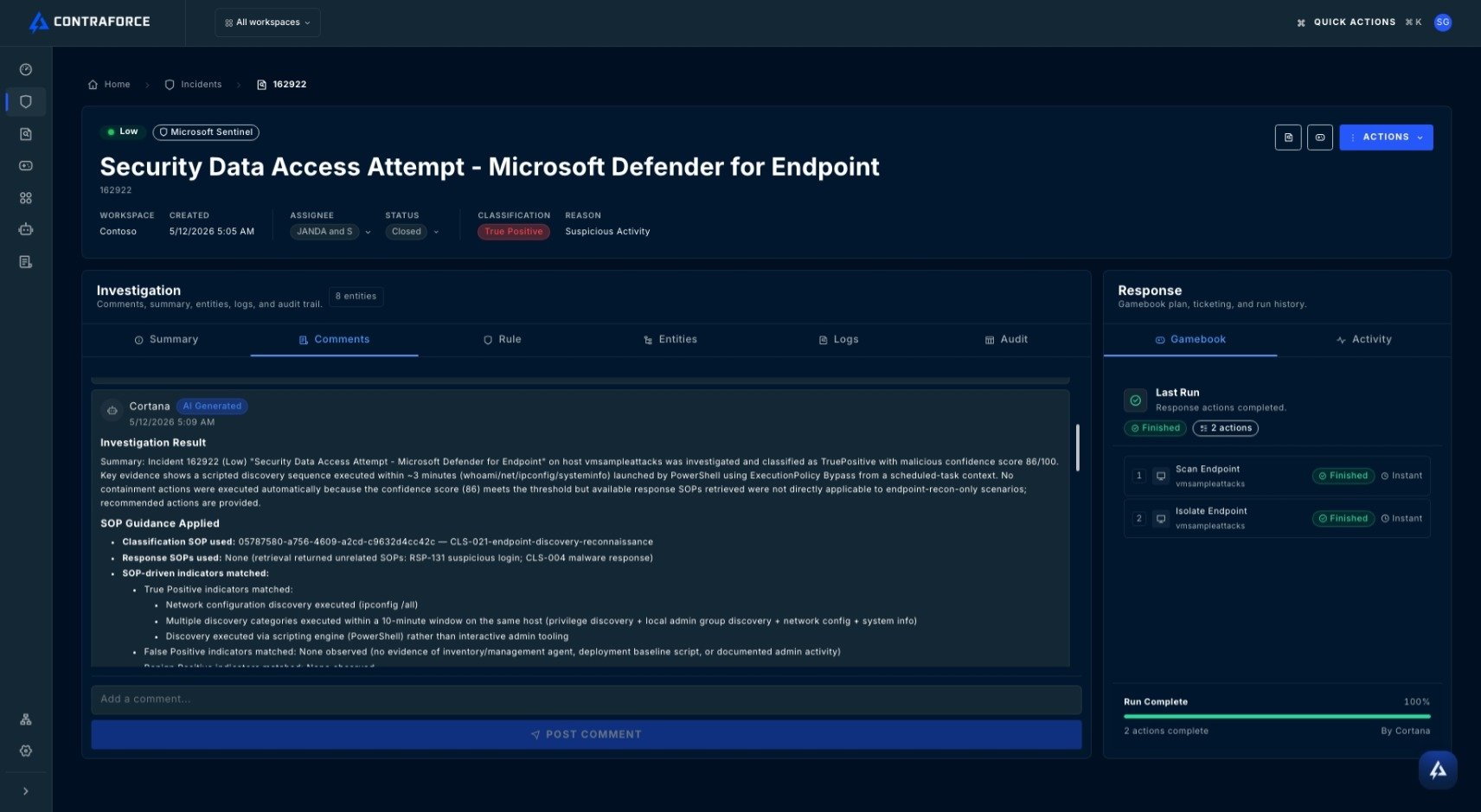
Incident Tabs
- Summary
- Rule
- Entities
- Logs
- Comments
- Audit
Summary – Overview of the incident including severity, status, affected assets, and key details at a glance.
4. Gamebook Responses
Gamebooks are AI-generated and human-created response actions, guided by your operating procedures, that let you quickly respond to incidents.Available Gamebook actions are determined by the entity types present in the incident. Agents automatically suggests relevant actions based on the output of the investigation and incident classification.
Using Suggested Gamebooks
If a Gamebook has been previously executed for similar incidents, agents suggest it automatically: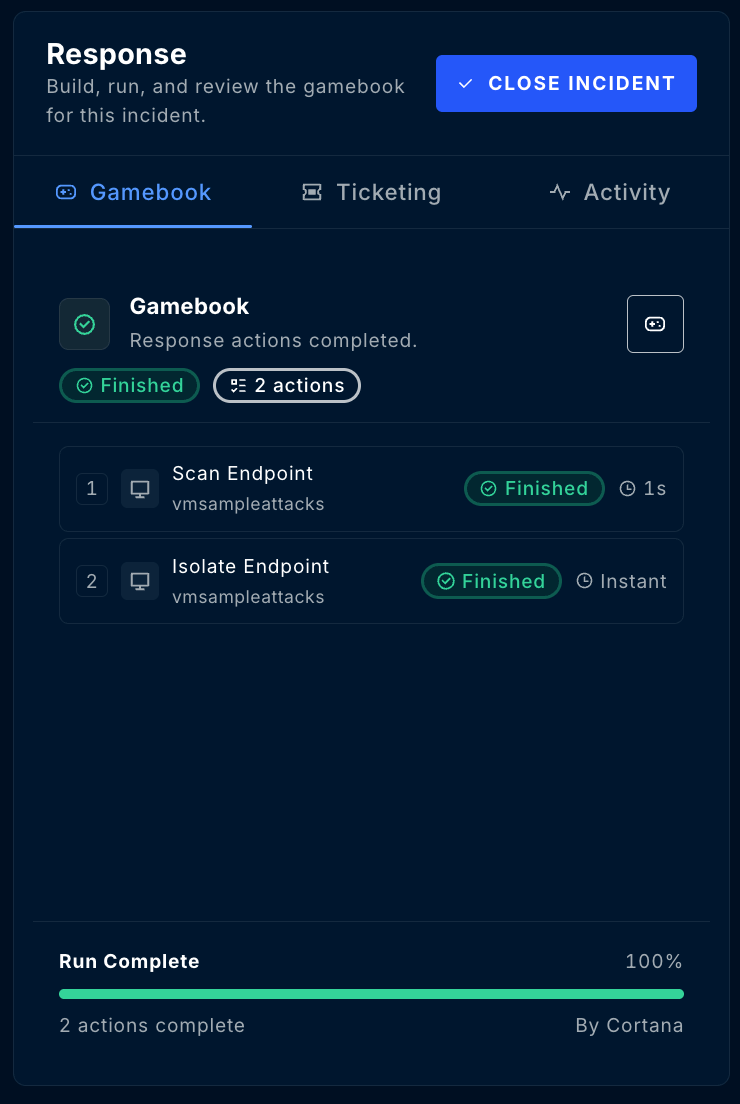
Creating a Custom Gamebook
1
Open the Workbench
On the full incident page, select the Gamebooks Workbench icon next to Actions, or use the Gamebook builder in the incident’s Response section
2
Explore Available Actions
Click entity icons in the Entity Graph to see available response actions
3
Build Your Response
- Use the arrows to navigate through action options
- Click the green + icon to add an action
- Click the red - icon to remove an action
4
Execute
Click Approve Gamebook to execute all selected actions
Gamebook Approval Workflow
Some Gamebook actions require approval before execution: To request approval:- Build your Gamebook as usual
- Click Request Gamebook Approval (instead of Run Gamebook)
- The request is sent to authorized approvers
- Approvers can approve directly from the incident, or
- Use the Gamebook Activity tab to review and approve pending requests
5. Incident Closure
After completing your investigation and response, close the incident with proper documentation.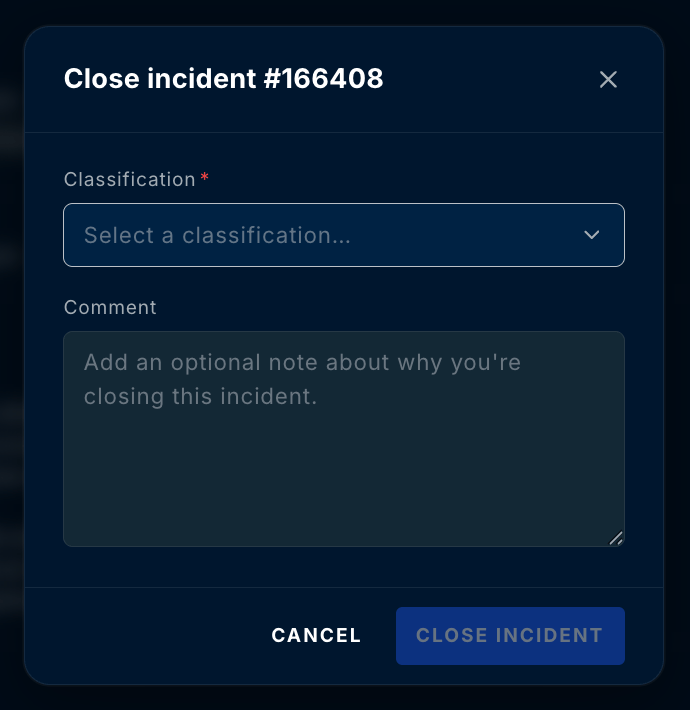
Quick Close from Gamebook
After a Gamebook completes, a green Close Incident button appears at the bottom of the Gamebook context group.Closure Fields
Putting It Together
The ContraForce incident management workflow is designed to help you:Triage Faster
Filter and prioritize incidents across all your workspaces from one dashboard
Respond Automatically
Execute proven response actions with Gamebooks instead of manual remediation
Document Everything
Maintain complete audit trails with comments, classifications, and history
Related Guides
Command Dashboard
Track closures, classification trends, and Gamebook activity across your workspaces.
What are Gamebooks?
Deep dive into automated response actions guided by your operating procedures.
Workbench Overview
Learn how to manage incidents in your workbench.
Incident Classifications
Understand True Positive, False Positive, and more.
SLA Tracking
Set response and resolution targets and track Time to First Response and MTTR.
Questions about this workflow? Contact us at support@contraforce.com. We’re happy to help optimize your incident management process.