

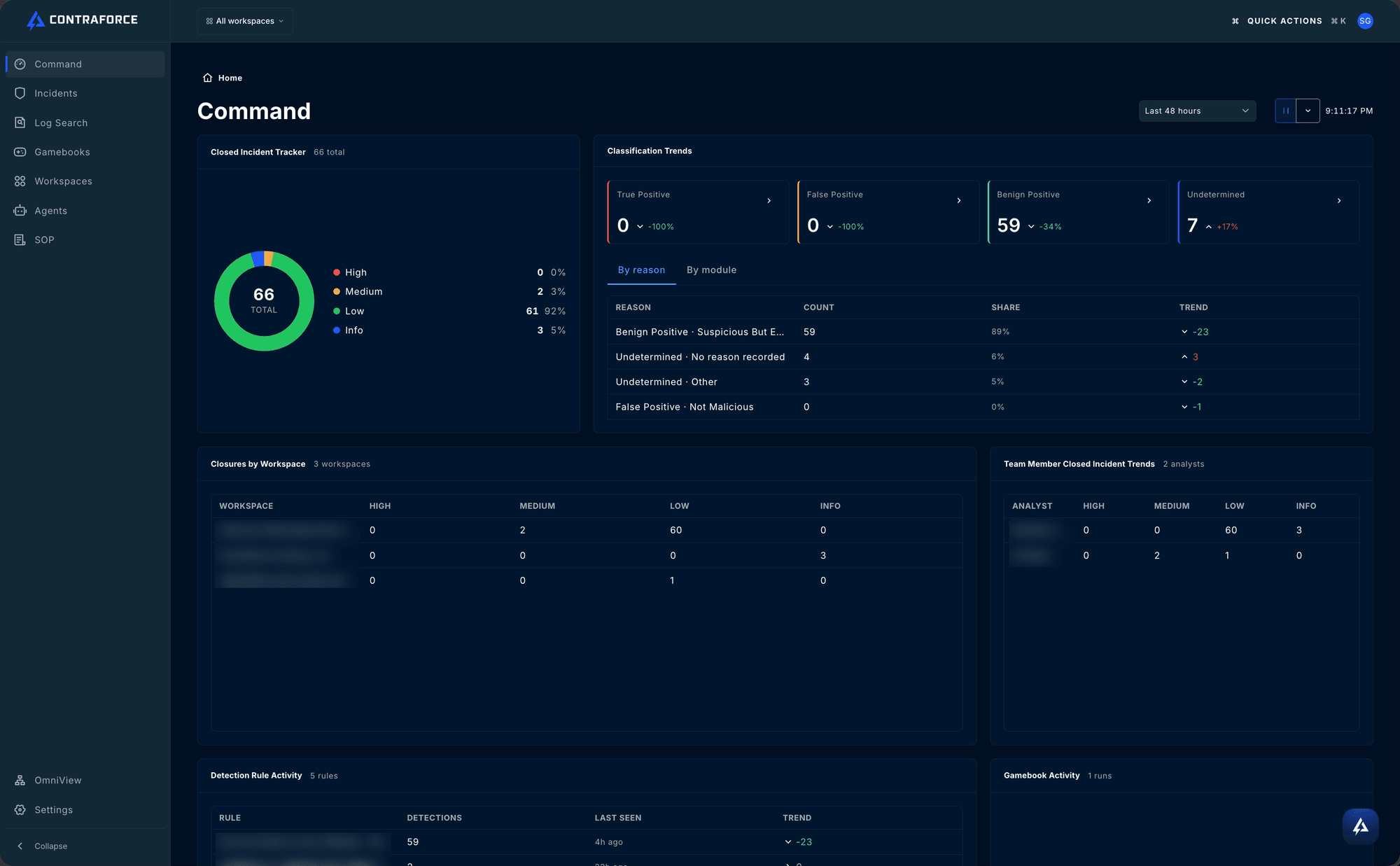
The Command Dashboard is designed for MSPs, MSSPs, and security teams managing tenants and environments. All data updates in real-time as incidents are detected and resolved.
Dashboard Cards
The Command Dashboard summarizes closures and activity for the workspaces and time window you’ve selected:Closed Incident Tracker
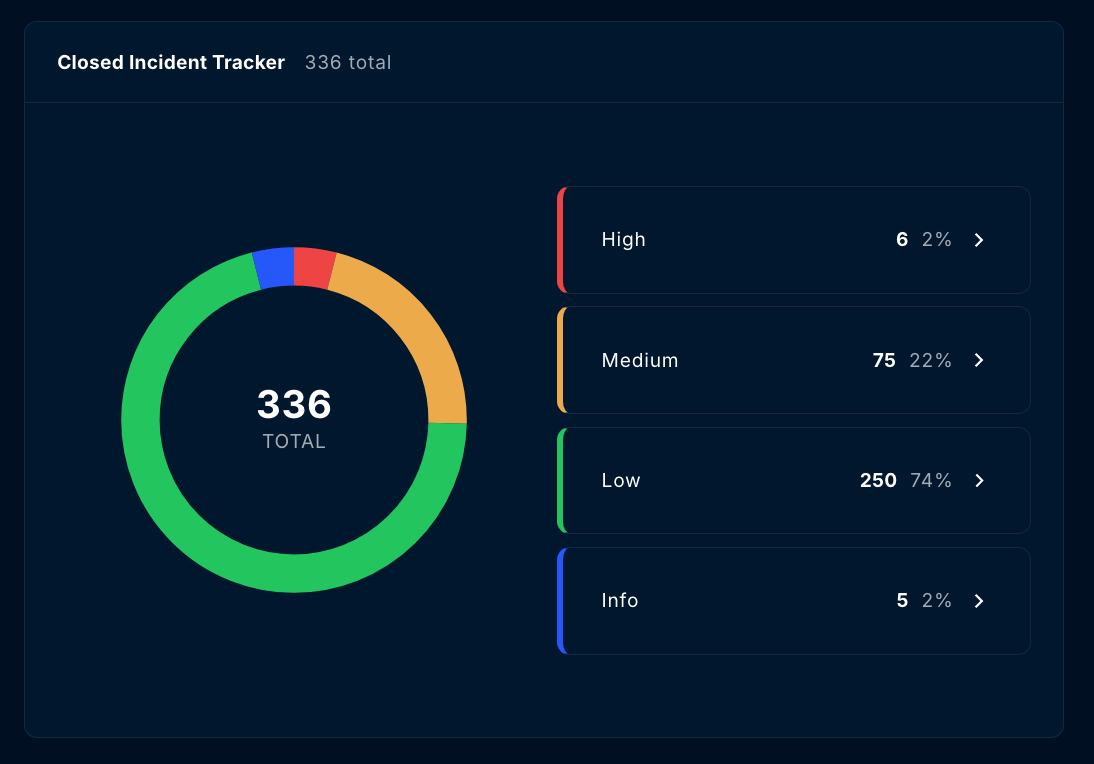
Closed incidents by severity. Filter workspaces to see incidents per workspace. Click the total or any severity to open the Incident Report.
Classification Trends
Closed incidents by classification (True Positive, False Positive, Benign Positive, Undetermined) with trends, broken down By reason or By module. Click a classification to open the Incident Report.
Closures by Workspace
Closed incidents per workspace, by severity.
Team Member Closed Incident Trends
Closures per analyst and agent, by severity. Incidents closed directly in a security tool appear under that tool, for example DefenderXDR (upstream).
Detection Rule Activity
The detection rules that fired, with detection counts, when each was last seen, and the trend.
Gamebook Activity
Gamebooks run in the selected window.
Gamebook History
View all queued Gamebooks that are processing or awaiting for approval. Click any incident to review and approve Gamebook runs.
Drilling into the Numbers
Totals on the Command Dashboard are links. Clicking one opens the Incident Report, which lists the closure records behind that number and carries your current time filter and workspace selection with it.Closed Incident Tracker
Click the donut for every closed incident in the period, or a High, Medium, Low, or Info row for that severity alone.
Classification Trends
Click the arrow on a classification card for that classification, or a row inside the By reason and By module tabs to narrow the report further.
Where the Incidents Are
The incident queue lives on the Incidents page in the left navigation, not on the Command Dashboard. There you can:- Search by title or ID, and filter by Source, Severity, Status, Classification, Reason, and Assignee
- Filter on the statuses New, Active, On Hold, Waiting on Customer, and Closed (the page starts on New and Active)
- Show, hide, reorder, and resize columns, including the SLA columns Time to First Response and MTTR (see SLA Tracking)
Incident Handling at Scale
Rather than updating incidents manually in batches, Security Delivery Agents running on queue automatically triage and act on incidents as they arrive. See Configuring Security Delivery Agents. Agents set to On Queue also pick up incidents that come straight from Defender for Endpoint, with no Microsoft Sentinel forwarding required. See Defender for Endpoint On Queue.Workspace Filtering
The workspace filter at the top of the Command Dashboard allows you to customize your view:- Click the Workspace Filter dropdown
- Select one or more workspaces to display
- Your selection persists as you navigate to other pages in ContraForce
Accessing Incident Details
To view detailed information about any incident:- Open the Incidents page and click an incident
- A quick view opens with the incident’s Summary, Comments, and Audit
- Select View full details for the full incident page
- Review the Summary, Comments, Rule, Entities, Logs, and Audit tabs
- Run the agent or other actions from the Actions menu
- Build and run Gamebook response actions
- Change the status and assignee
Next Steps
Incident Management
A complete workflow for triaging, investigating, and resolving incidents.
Workspace Center
Manage workspace settings from one central location.
Incident Report
Drill into any dashboard total to see, filter, and print the closures behind it.
Incident Classifications
Learn how to properly classify incidents to improve detection accuracy.
Multi-Tenant Features
Explore all multi-tenant management capabilities.
Quick Actions
Press Ctrl + K to jump to portal pages and workspace settings.
Need help? Contact the ContraForce Support team at support@contraforce.com.