

ContraForce integrates with Microsoft Entra ID (formerly Azure AD) to pull user identities. Users must exist in Microsoft Entra ID before they can be added to ContraForce.
How Users, Roles, and Groups Fit Together
Organizational Roles
Control who can manage users, groups, and workspace settings across your organization
Workspace Roles
Define what users can do within specific customer workspaces
User Roles at a Glance
ContraForce uses a two-tier role system: Organizational Roles control administrative access, while Workspace Roles control operational access.Workspace Roles Quick Reference
Complete Role Reference
View detailed permissions for all organizational and workspace roles
When to Add Users
Adding users is not part of module onboarding. First, sign in at portal.contraforce.com, grant the core ContraForce app consents, and deploy your modules. Once your organization is set up, add and manage users at any time from Settings.Adding and Managing Users
You add and manage users through the Settings page. User and group management is handled entirely within the ContraForce portal — no separate enterprise application consent is required.Step 1: Access User Management
1
Open Settings
Click Settings in the navigation menu
2
Select User Management
Click the User Management tab
3
View Current Users
The user list displays all users with access to ContraForce

Step 2: Add New Users
1
Click Add User
Click the Add User button in the top right corner
2
Search for User
Search for the user by name or email in the Microsoft Entra ID directory
3
Select User
Click the user to select them
4
Choose the Organization Role
New users start as Member. Only an Org Admin can choose a higher role. Give workspace access afterwards from each workspace’s IAM tab or through a group.
5
Save
Click Add to complete the process
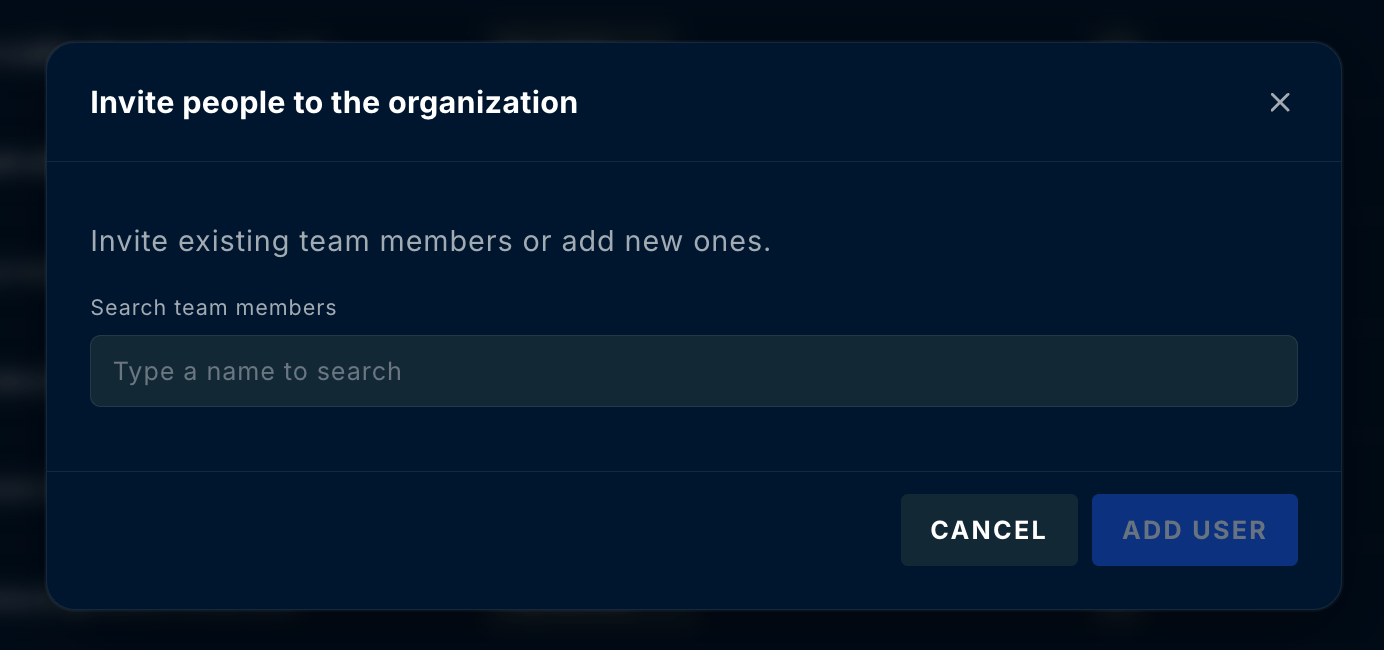
The Add User button appears for Org Admins and User Admins. A User Admin can add new users as Member only; adding someone with a higher role, or changing an existing user, needs an Org Admin.
Understanding Role Types
Organizational Roles
Organizational roles control administrative functions across your organization:
Agent Admins run the AI agents, and the content roles work in the Content Management Center. See the roles reference for every role’s full permissions.
Workspace Roles
Workspace roles control what users can do within specific customer workspaces:- Owner
- Content Admin
- Incident Responder
- Incident Analyst
- Workspace Reader
Full control of the workspace
- Work incidents and run Gamebooks
- Configure modules, data connectors, notifications and policies
- Manage the workspace’s users, groups and Gamebook approvers
User Groups
Simplify access management by organizing users into groups.Benefits of Groups
Bulk Assignment
Assign workspace access to multiple users at once
Easier Management
Update group membership instead of individual users
Consistent Access
Ensure team members have the same permissions
Recommended Default Groups
Setting up default groups during initial configuration saves time and ensures consistent access patterns.Suggested Partner Groups
Creating Groups
Groups are managed on the Group Management tab under Settings.
1
Navigate to Group Management
Go to Settings > Group Management
2
Create New Group
Click Add Group and enter a name
3
Add Members
Search for and add users to the group. Members get the group’s workspace roles, so adding people to a group that is assigned to workspaces needs an Org Admin, or an Owner of every workspace the group is assigned to.
4
Assign to Workspaces
Assign the group to workspaces with appropriate roles
Assigning Users to Workspaces
Users need workspace assignments to access customer data.Individual Assignment
- Open the workspace settings
- Navigate to Users or Access
- Click Add User
- Select the user and assign a workspace role
- Save changes
Group Assignment
- Open the workspace settings
- Navigate to Groups or Access
- Click Add Group
- Select the group and assign a workspace role
- All group members inherit access
Managing Existing Users
Viewing User Details
Click any user in the User Management list to view:- Assigned organizational role
- Workspace assignments and roles
- Group memberships
- Last login time
Editing User Roles
1
Organization role
In Settings → User Management, pick the new role in the user’s Organizational Role column. Only Org Admins can change organization roles; for everyone else the column is read-only.
2
Workspace role
Open the workspace’s IAM tab and change the user’s or group’s role. Workspace Owners, Org Admins and Workspace Admins can do this.
An organization always keeps at least one working Org Admin: the last one cannot be demoted. Roles of users provisioned from Microsoft Entra ID through SCIM provisioning come from their Entra groups and cannot be changed in the portal.
Removing Users
1
Select User
Click the user you want to remove
2
Click Remove
Click the Remove User or Delete button
3
Confirm
Confirm the removal when prompted
Best Practices
Follow the principle of least privilege
Follow the principle of least privilege
Assign the minimum role necessary for each user’s job function. Start with Incident Analyst or Workspace Reader and escalate to Responder or Owner only when needed.
Use groups for team-based access
Use groups for team-based access
Create groups that mirror your team structure (e.g., “Tier 1 Analysts”, “Senior Responders”). This simplifies access management as team members change.
Audit user access regularly
Audit user access regularly
Review user assignments quarterly to ensure former team members have been removed and current roles are still appropriate.
Document role assignments
Document role assignments
Maintain records of who has access to which workspaces and why. This helps with compliance audits and access reviews.
Separate admin duties
Separate admin duties
Don’t give everyone Org Admin or Owner access. Keep role changes and API keys with a few Org Admins, and use User Admins for day-to-day user management.
Troubleshooting
Common Issues
Related Guides
User Roles Reference
Complete permissions for all roles
Workspace Center
Manage workspace settings
Enterprise Applications
Service principals and consent
Multi-Tenant Features
Managing multiple customers
Questions about user management? Contact us at support@contraforce.com.