

CMS requires the Microsoft Sentinel module. If you only have the Defender module deployed, you’ll need to upgrade before using CMS. See Module Overview for details.
Before You Begin
Prerequisites
Ensure you have the following before starting:1
Microsoft Sentinel Module
Your workspace must have the Microsoft Sentinel module deployed with Microsoft Sentinel connected
2
Required Permissions
You need Data Source Admin, Content Admin, or Organization Admin role in ContraForce
3
Sentinel Access
Your ContraForce service principal must have appropriate permissions in the target Sentinel workspace
4
Active Data Connectors
Data connectors should be configured for the data sources you want detection rules for
Required Roles
User Roles Reference
View complete permissions for all roles
Step 1: Access the Content Management System
1
Navigate to CMS
From the ContraForce navigation menu, click Content Management or CMS
2
Select Workspace
If you manage multiple workspaces, select the workspace you want to configure from the dropdown
3
View Dashboard
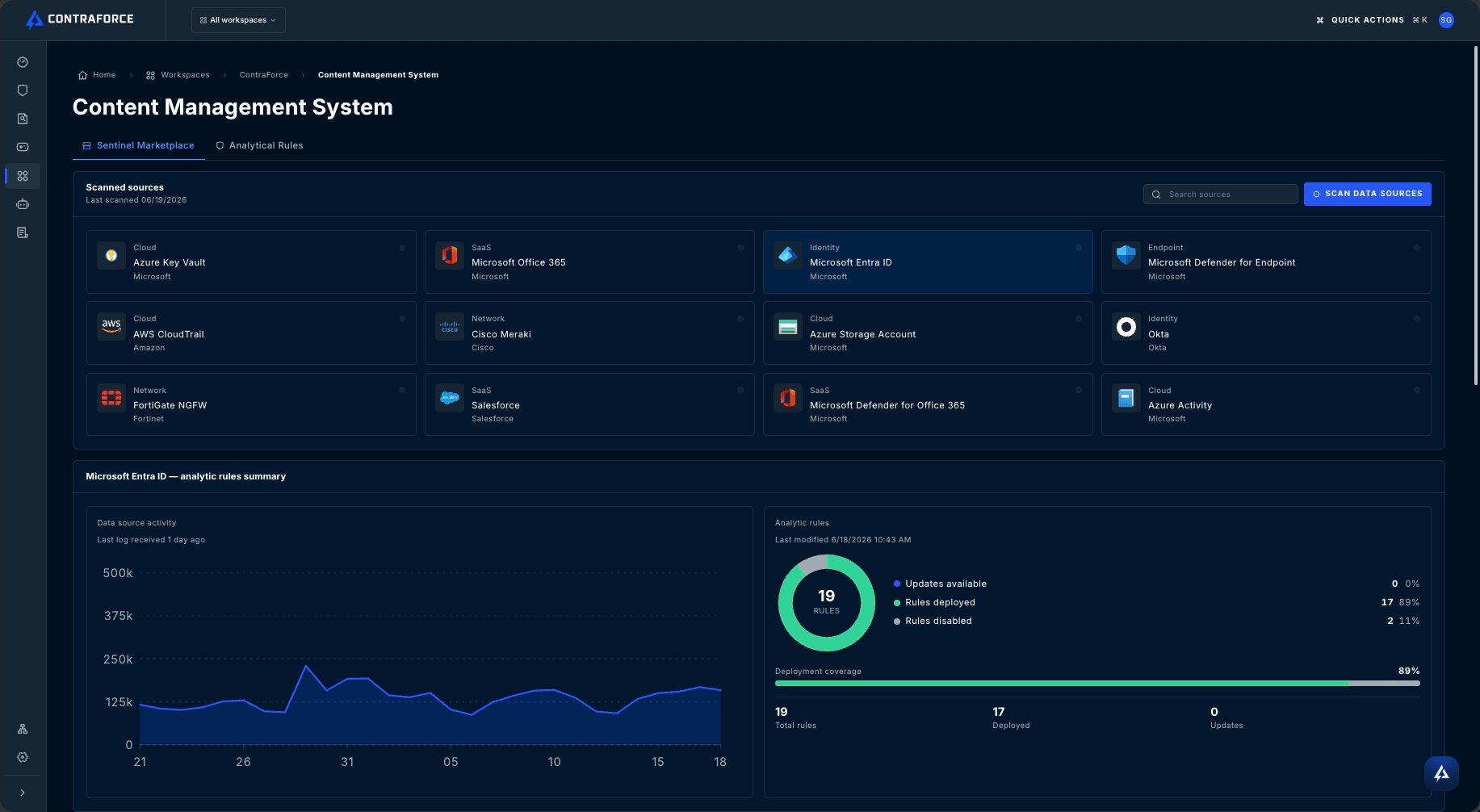
The CMS dashboard displays available data sources and deployment status
Step 2: Understand the CMS Interface
Dashboard Overview
The CMS interface is organized by data source, with each section showing:Rule List View
Clicking into a data source shows all available rules: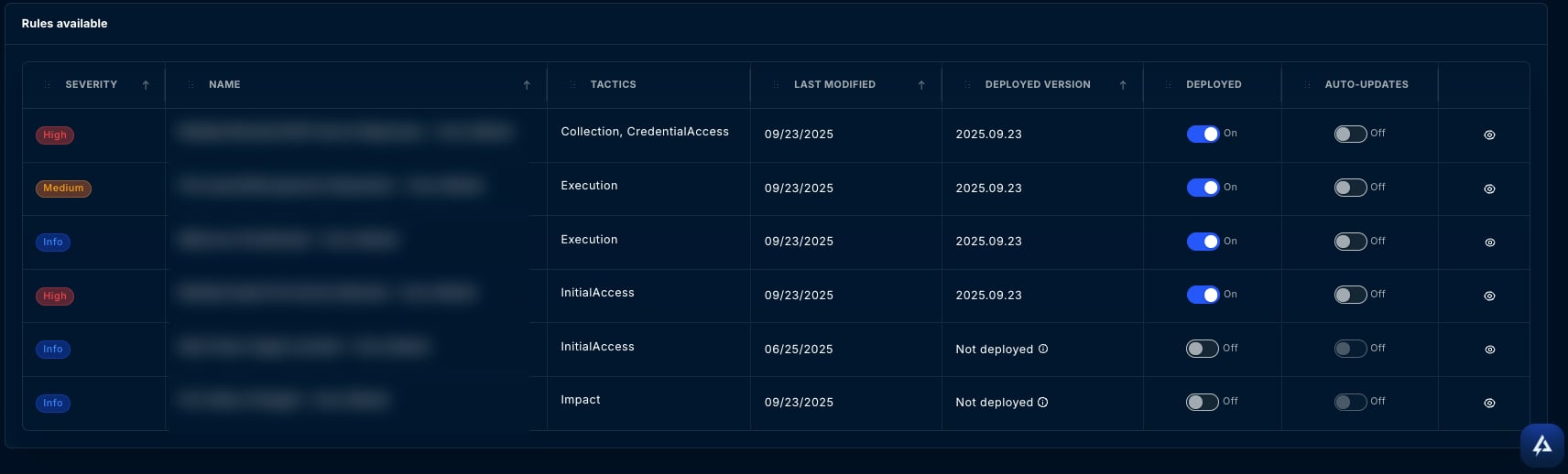
Rule Details
Click any rule to view complete details:- Full description of what the rule detects
- MITRE ATT&CK tactics and techniques
- Query frequency and time period
- The actual KQL query (for transparency)
- Version history and changelog
Step 3: Review Your Data Connectors
Before deploying rules, verify which data sources are active in your Sentinel workspace.Check Data Connector Status
1
Navigate to Data Connectors
Go to the Data Connectors page in ContraForce
2
Review Connected Sources
Note which connectors show “Connected” status
3
Match to CMS Categories
Map your connected sources to CMS data source categories
Common Data Source Mappings
Step 4: Deploy Your First Detection Rules
Start with a focused deployment to familiarize yourself with the process.Recommended Starting Point
We recommend starting with Azure AD / Entra ID rules if you have that connector active. These rules detect:- Suspicious sign-in activity
- Privilege escalation attempts
- Conditional access policy changes
- Service principal abuse
- And more identity-based threats
Deploying Rules
1
Select Data Source
Click on Azure AD (or your chosen data source) in the CMS dashboard
2
Review Available Rules
Browse the list of available detection rules
3
Check Rule Details
Click on a few rules to understand what they detect and their severity
4
Enable Rules
Toggle the switch to Enabled for rules you want to deploy
5
Monitor Deployment
Watch the status indicator—it will show “Deploying” then “Deployed”

Deployment Status Indicators
Step 5: Bulk Deployment (Optional)
Once comfortable with individual deployments, you can enable multiple rules at once.Enable All Rules for a Data Source
1
Select Data Source
Navigate to the data source category
2
Use Bulk Actions
Click Enable All or use the bulk selection checkboxes
3
Confirm Deployment
Review the rules to be deployed and confirm
4
Monitor Progress
The dashboard shows deployment progress for all rules
Bulk Deployment Considerations
Start with high-confidence rules
Start with high-confidence rules
Consider enabling only High and Medium severity rules initially to minimize noise while you tune your environment.
Deploy in phases
Deploy in phases
For large deployments, consider enabling one data source category at a time. This makes it easier to identify which rules generate the most valuable alerts.
Monitor for false positives
Monitor for false positives
After bulk deployment, monitor incident volume for a few days. Disable rules that generate excessive false positives while you investigate.
Step 6: Configure Automatic Updates
Keep your detection rules current by enabling automatic updates.Understanding Auto-Update
When enabled, CMS automatically deploys new rule versions when they’re released:- Security improvements — Updated logic to catch new attack variants
- False positive reduction — Refined queries to reduce noise
- Performance optimization — More efficient queries that run faster
Enabling Auto-Update
- Per-Rule
- Bulk Enable
- Workspace Default
Enable auto-update for individual rules:
1
Open Rule Details
Click on a deployed rule to view its details
2
Toggle Auto-Update
Enable the Auto-Update switch
3
Confirm
The rule will now automatically update when new versions are released
When to disable auto-update: If you have strict change management requirements, disable auto-update and manually review each update before deploying. The “Update Available” indicator will alert you to new versions.
Step 7: Deploy to Additional Workspaces
For MSSPs managing multiple customers, replicate your detection coverage across workspaces.Multi-Workspace Deployment
1
Return to Dashboard
Go back to the main CMS dashboard
2
Select Different Workspace
Use the workspace selector to switch to another customer
3
Repeat Deployment
Enable the same rules for consistency across your customer base
Deployment Templates (Coming Soon)
ContraForce is developing deployment templates that let you define a standard rule set and deploy it across multiple workspaces simultaneously. Contact support@contraforce.com to express interest.
Step 8: Verify Deployment in Sentinel
Confirm your rules are active in Microsoft Sentinel.Verification Steps
1
Open Azure Portal
Navigate to your Microsoft Sentinel workspace in the Azure portal
2
Go to Analytics
Click Analytics in the Sentinel navigation
3
View Active Rules
Click the Active rules tab
4
Find CMS Rules
Search for rules deployed by CMS—they’ll have consistent naming
What to Look For
Post-Deployment Checklist
After completing your initial CMS deployment:1
Document Deployed Rules
Record which rules you’ve enabled for each workspace
2
Set Up Notifications
Configure incident notifications for new Sentinel incidents
3
Monitor Incident Volume
Watch the Command Page for new incidents generated by your rules
4
Review After 7 Days
Assess which rules are generating value vs. noise
5
Tune as Needed
Disable noisy rules or work with ContraForce to improve detections
6
Expand Coverage
Enable additional data sources and rules as you gain confidence
Troubleshooting
Common Issues
Getting Help
If you encounter issues:- Check the error message — CMS provides detailed error information
- Verify permissions — Ensure your role allows rule deployment
- Check Sentinel access — Confirm the ContraForce service principal has API access
- Contact support — Email support@contraforce.com with workspace details
Recommended Deployment Strategy
Phase 1: Foundation (Week 1)
Focus on identity and access:- ✅ Azure AD / Entra ID rules (all severities)
- ✅ Enable auto-update for these rules
- ✅ Monitor for 5-7 days
Phase 2: Expand (Week 2)
Add Microsoft 365 and Azure infrastructure:- ✅ Microsoft 365 rules
- ✅ Azure Activity rules
- ✅ Azure Security Center rules
Phase 3: Complete (Week 3+)
Enable remaining data sources:- ✅ Windows Security Events
- ✅ Linux Syslog
- ✅ Network Security Groups
- ✅ DNS Analytics
- ✅ Any additional connected sources
Phase 4: Optimize (Ongoing)
Continuous improvement:- Review incident quality weekly
- Disable low-value rules
- Enable new rules as they’re released
- Ensure auto-update is enabled for standard rules
Next Steps
CMS Overview
Deep dive into CMS capabilities
Incident Management
Handle incidents generated by CMS rules
Notifications
Configure alerts for new incidents
Questions about CMS onboarding? Contact us at support@contraforce.com.