

Who is this for?
- MSP/MSSP partners bringing on new customers
- Organizational Admins and Workspace Admins responsible for onboarding
What Can You Do Here?
Onboard One Customer
Add a workspace and pick the profile that should configure it.
Import a Batch
Upload a CSV and pre-onboard up to 200 workspaces in one action.
Watch Every Row
Track each import row’s outcome and re-import only what failed.
Prerequisites
Onboarding a Single Workspace with a Profile
1
Open the Onboarding tab
From the left navigation, select Workspaces, then click the Onboarding tab.
2
Click Add workspace
The Add a workspace panel opens.
3
Identify the customer tenant
4
Finish the wizard
Choose the modules to seed on the next step and send the invite. The workspace appears on the Onboarding tab with a pending badge.
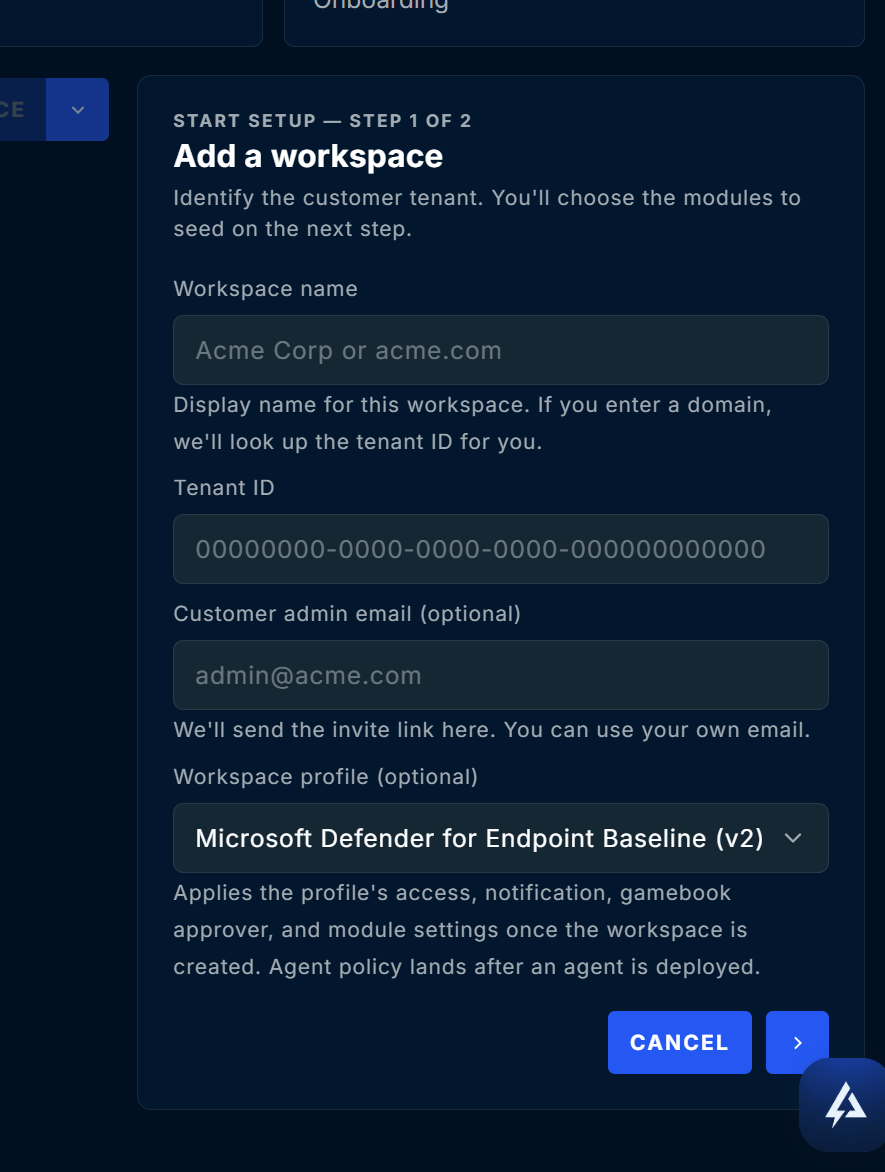
Choosing a Workspace Profile while adding a workspace
If the profile’s modules would move the workspace onto a higher-priced plan, that part is left for you to confirm. Open the profile, click Apply, and acknowledge the charge. Creating a workspace is never treated as consent to a recurring charge.
Importing a Batch from CSV
Use an import when you are bringing on many customers at once. Every row is pre-onboarded exactly as if you had typed it into the form.1
Open the import dialog
From the Workspaces page, choose Import workspaces.
2
Download the template
Click Download template to get a CSV with the right columns and a sample row.
3
Fill in one workspace per row
Replace the sample row with your customers. The sample tenant ID is intentionally an all-zero placeholder, so a file saved without editing fails loudly instead of onboarding the wrong tenant.
4
Upload the file and import
Select the file and click Import workspaces. ContraForce validates the whole file before anything is created.
5
Watch the import
The import runs in the background, one row at a time. Open it to see each row’s status and result.
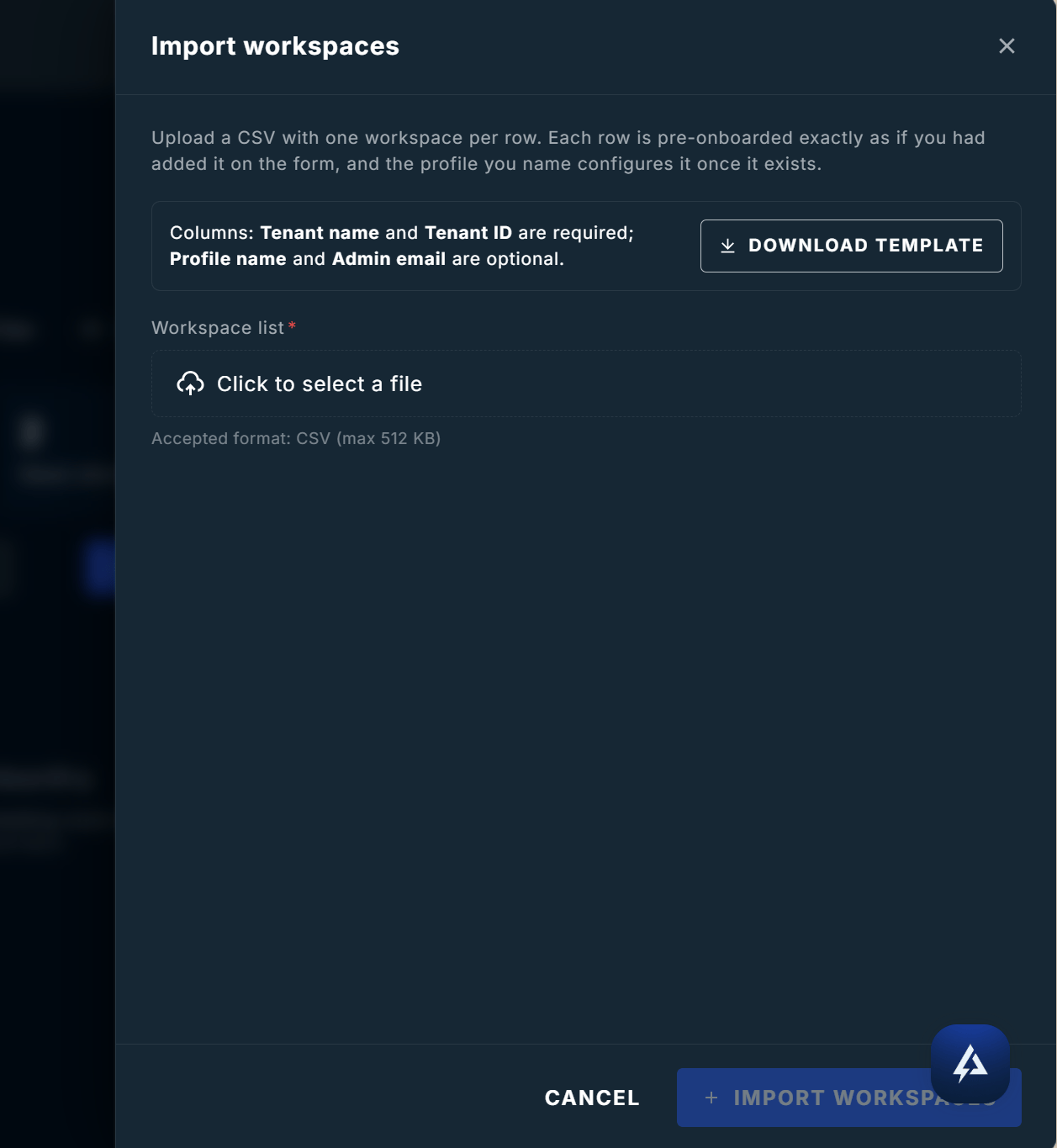
Import workspaces dialog
CSV columns
Limits
What is validated before anything is created
Tracking an Import
Each import has its own activity page listing every row with its outcome.
Rows are processed one at a time, so a large import takes a few minutes. Successful rows are created immediately, so you do not have to wait for the whole file to finish before working with them.
If an import stops making progress, a Resume option appears after a few minutes. Resuming picks up where the import left off and never re-creates a workspace that already exists.
What Happens Next
Importing pre-onboards each customer. The customer admin still completes their own setup wizard using the invite link.1
The customer admin accepts the invite
They grant ContraForce access to their Microsoft tenant. See Customer Workspace Onboarding.
2
The workspace goes live
The card moves from the Onboarding tab to the Workspaces tab.
3
Verify the profile landed
Open the profile and check the Activity tab. Anything still waiting shows as not yet on the current version. Click Apply now.
Troubleshooting
Still stuck? Contact support@contraforce.com with the import file and the row numbers that failed.
Related Guides
Workspace Profiles
Build the template that configures every new workspace.
Workspace Center
Monitor workspace health and manage per-workspace settings.
Customer Workspace Onboarding
What your customer admin sees after they receive the invite.
Onboarding Verification
Confirm a new workspace is fully live and ingesting.
Questions about onboarding at scale? Contact us at support@contraforce.com.