

Who is this for? SOC analysts who want to check a response before they run it, and workspace Owners who build and tune workspace policies and want to confirm each one does what they intended.
Why Use Gamebook Preview?
Running a Gamebook on a live incident should never be a guess. Preview turns “I think this will work” into “I know this will work” in a single click.Act with confidence
See the exact users, devices, and addresses each action will hit before you click Run. No surprises on a production incident.
Test policies without trial and error
See which policy allows, blocks, or requires approval for each action, so you can fix a plan or a policy before you submit anything.
Avoid hitting action limits mid-response
See how many targets each action has left in the current hour, so a large Gamebook isn’t refused halfway through an incident.
Know who has to approve, and why
Every approval rule that applies, whether a policy, an end-customer approval, or your role, is listed in plain language.
The Easiest Way to Test Your Policies
You don’t need a test incident, a test device, or a run you have to undo to find out whether a policy works. Build the Gamebook you’re worried about, click Preview, and read the verdict next to each action:- A policy meant to protect VIP accounts should show Blocked by that policy on a VIP user.
- A policy that requires approval for isolations should show Approval: that policy on Isolate Endpoint.
- An action you expect to run freely should show Allowed.
Preview a Gamebook
Preview is available on any new Gamebook you’re building for an incident.1
Open the incident's Gamebook tab
Open an incident and go to the Response panel → Gamebook tab.
2
Add your actions
Add the response actions you want to run, as you normally would. See Building a Gamebook if you’re new to the builder.
3
Click Preview
Click Preview next to Run Gamebook.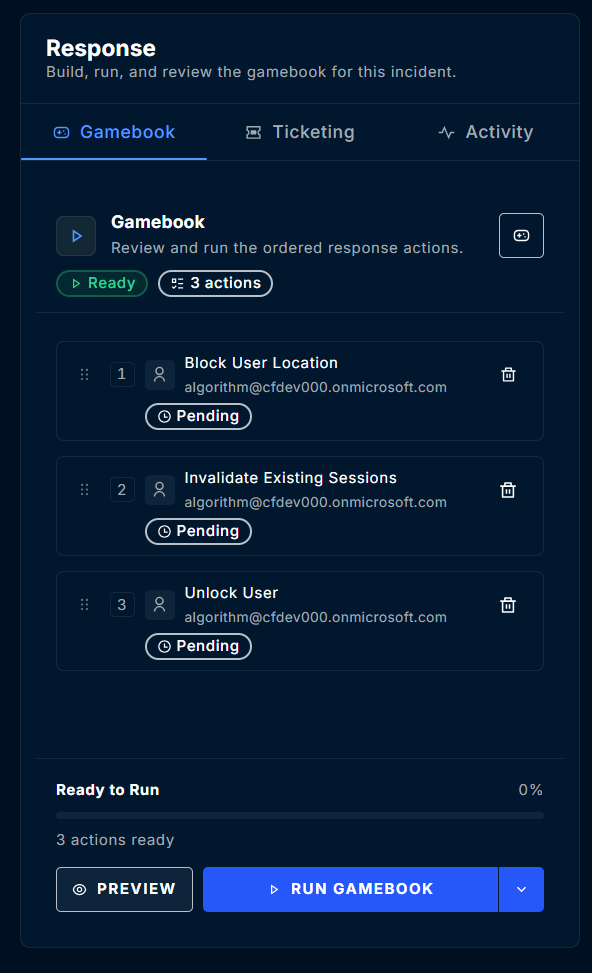
4
Read the Preview
The Preview replaces the action list. You should see the overall verdict at the top and each action, in run order, with its target, policy verdict, and remaining hourly limit.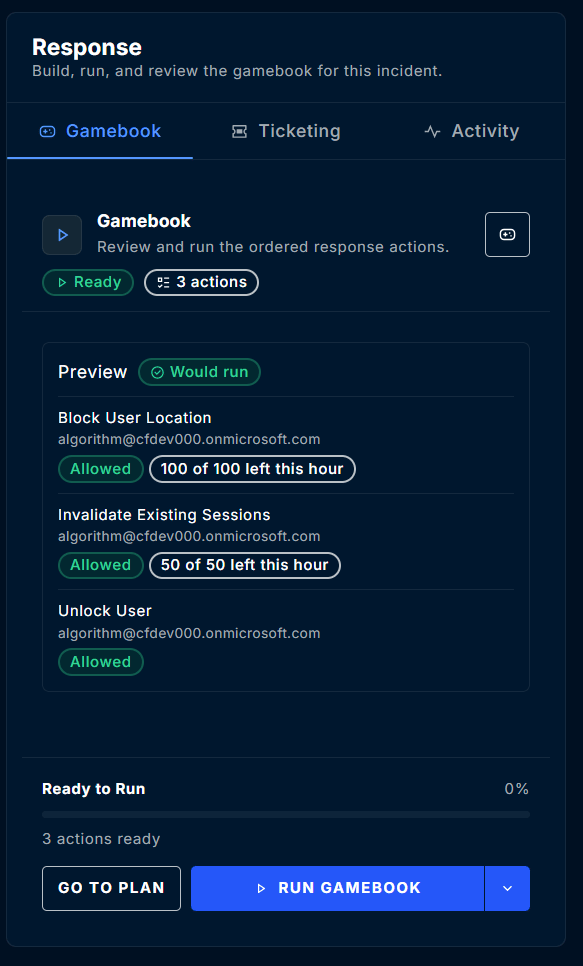
5
Run it or go back to the plan
Click Run Gamebook (or Request Approval) to submit the Gamebook straight away, or click Go to Plan to return to the action list and make changes.
What the Preview Shows
Approval Reasons You Might See
The Approval required section lists every rule that would send the Gamebook to an approver. For example:- “Policy ‘Approve isolations’ requires approval.”
- “An action needs the end customer’s approval.”
- “Your role can request approval for this gamebook but not run it.”
Good to Know
- Preview has no side effects. It doesn’t store the Gamebook, run anything, write to the audit log, or count toward your hourly action limits.
- Approval-bound Gamebooks are checked against limits at approval time. A Gamebook that would wait for approval is checked against the hourly action limits when it’s approved, not when it’s submitted. Its Preview still shows where each limit stands now, as a warning.
- Only new Gamebooks can be previewed. Gamebooks that were already submitted (queued, running, or finished) show their status instead of a Preview.
- Preview works for every role that can build a Gamebook. Roles that can only request approval, such as Incident Analyst, can still preview, and the Preview says the Gamebook will wait for approval.
Preview Through the API
You can request the same Preview from the ContraForce API before submitting a Gamebook from your own automation.POST /api/v2/workspaces/{workspaceId}/gamebooks/preview
- Scope:
gamebooks:execute, with access to the workspace. - Request body: the same body as
POST /api/v2/workspaces/{workspaceId}/gamebooks/run. - Response: what would happen, with nothing stored, run, or recorded.
Only a new Gamebook can be previewed. A request to approve or retry an existing Gamebook is refused.
FAQ
Does a Preview count toward my hourly action limits?
Does a Preview count toward my hourly action limits?
No. A Preview runs nothing, stores nothing, and counts toward nothing.
Why does a Preview say my role can only request approval?
Why does a Preview say my role can only request approval?
Only workspace Owners and Incident Responders can run a Gamebook directly. Other roles can preview a Gamebook and submit it for approval. See the Roles and Permissions Reference.
An action shows Blocked by a policy. What do I do?
An action shows Blocked by a policy. What do I do?
Remove the action from the plan with Go to Plan, or, if the policy is stricter than you intended, ask a workspace Owner to adjust it in Workspace Policies. Then preview again.
What's the difference between Preview and Simulation?
What's the difference between Preview and Simulation?
Preview tells you what would happen without running anything. Simulation actually runs the Gamebook end to end, through approvals, tracking, emails, and webhooks, but every action only reports what it would have done.
Related Guides
Gamebook Simulation
Run a Gamebook end to end without changing anything in your environment
Workspace Policies
Allow, block, or require approval for Gamebook actions
What Are Gamebooks?
Build, run, and approve Gamebooks with the built-in response actions
Roles and Permissions Reference
See which roles can run Gamebooks and which can only request approval
Questions about Gamebook Preview? Contact us at support@contraforce.com.