

Who is this for? Service providers running demos and trials, security teams onboarding and training analysts, and engineers who want to test their notification, ticketing, or SOAR integrations against Gamebook events without touching production entities.
Why Use Gamebook Simulation?
A real Gamebook acts on real users and devices. That’s exactly what you want during an incident, and exactly what you don’t want during a demo, a trial, or a training session. Simulation gives you the full experience with zero side effects.Safe demos, trials, and training
Show the full response flow, including policies, approvals, and tracking, without isolating a single device or resetting a single password.
Test integrations end to end
Simulated runs still send emails and webhooks, clearly marked as simulated, so you can validate your SOAR, ticketing, or notification setup safely.
Never confused with a real response
Simulated runs are labeled Simulated everywhere they appear: in the Gamebook, the Gamebooks page, the audit log, emails, and webhooks.
Doesn't use up your action limits
Simulated runs aren’t counted toward your hourly action limits, so you can simulate as often as you need without blocking real responses.
What Happens in a Simulated Run
Simulate a Single Gamebook
You can run any Gamebook as a simulation, whatever the workspace setting. This is the quickest way to walk someone through a response on a real incident without acting on it.1
Build the Gamebook
Open an incident and go to the Response panel → Gamebook tab. Add the actions you want, as you normally would.
2
Open the Run menu
Click the arrow next to the Run Gamebook button.
3
Choose Simulate run
Select Simulate run.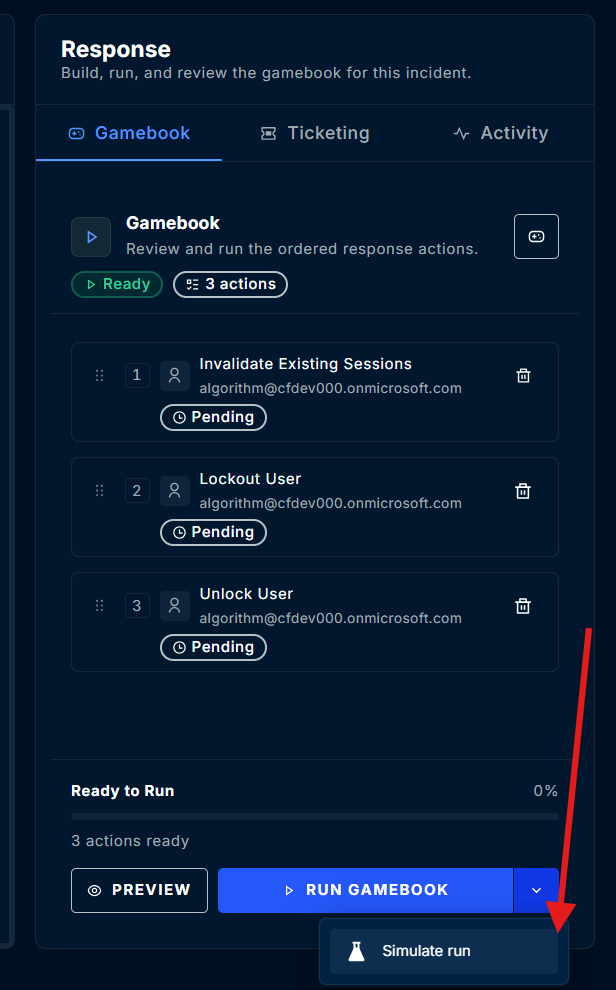
4
Follow the simulated run
The Gamebook goes through the same steps as a real run: policies, approvals, and tracking. You should see a blue Simulated badge next to the Gamebook’s status, and each action reports “Simulated: would run (action) on (target). Nothing was changed.”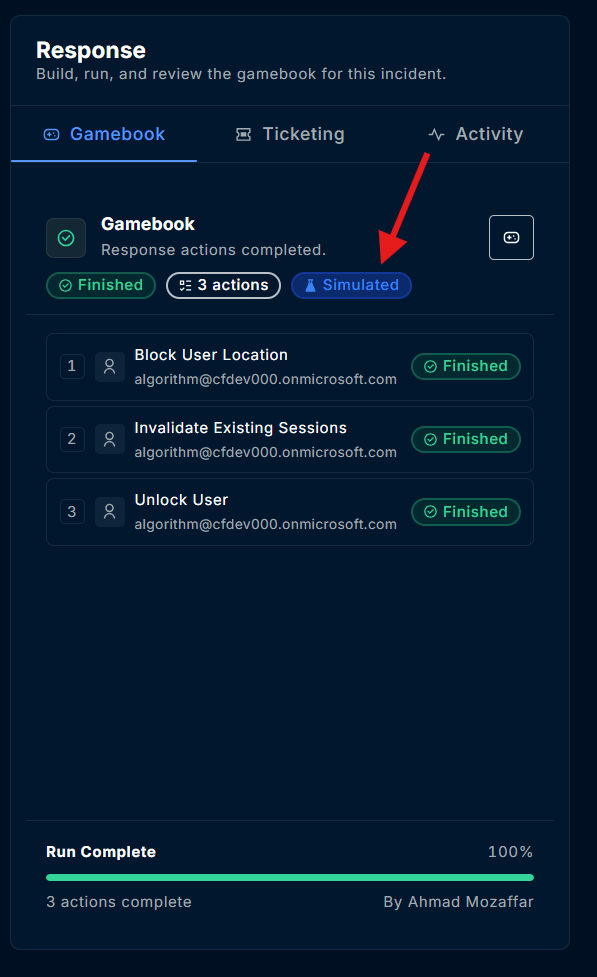
Simulation Mode for a Workspace
When Simulation mode is on, every new Gamebook in the workspace runs as a simulation: Gamebooks run by analysts, by AI agents, and through the API. Nobody has to remember to choose Simulate run. This makes it ideal for:- Demos: show prospects and customers the full ContraForce response flow, including AI agents building and running Gamebooks, on real incidents.
- Trials: let a new customer experience automated response in their own tenant without any action reaching their users or devices.
- Training: let new analysts practice building, running, and approving Gamebooks with no risk.
Turn Simulation Mode On or Off
Who can change it: workspace Owners. Other roles can see the setting but can’t change it.1
Open the workspace
Go to Workspaces and open the workspace.
2
Open the Gamebooks tab
Select the Gamebooks tab.
3
Find Simulation mode
In Gamebook configuration, find Simulation mode, below Action limits.
4
Switch it On or Off
Switch the toggle On or Off. The change is saved immediately and recorded in the workspace’s audit log.
What the Setting Affects
- New Gamebooks only. It applies to Gamebooks created after you change it.
- Queued Gamebooks keep their mode. A Gamebook waiting for approval keeps the mode it was created with.
- Retries stay simulated. Retrying a simulated Gamebook runs another simulation.
- Simulation always wins. Simulate run can always simulate a single Gamebook, even when Simulation mode is off. Nothing can force a real run while Simulation mode is on.
- AI agents and the API are included. Gamebooks that Security Delivery Agents submit, and Gamebooks submitted through the API, also run as simulations. Simulation mode is managed in the portal only.
How Simulated Runs Appear
Simulation, Policies, and Action Limits
Policies apply exactly as they do to real runs. A policy that blocks an action blocks it in a simulation too, and a policy that requires approval sends the simulated Gamebook to your approvers. Approval emails are marked [Simulated], so approvers know that approving it changes nothing. That makes Simulation a good way to rehearse your approval process as well as your response. Action limits don’t apply. Simulated runs aren’t checked against your workspace’s hourly action limits and aren’t counted toward them.For Integrations and Developers
Webhook Payloads
Both Gamebook webhook events carry anisSimulation field:
gamebook.run.v1:isSimulationistruewhen the Gamebook runs as a simulation.gamebook.completed.v1:isSimulationistruewhen the Gamebook ran as a simulation, whatever its outcome says. A simulated Gamebook can report Succeeded even though nothing changed.
"isSimulation": false.
See Configure Webhooks to set up a webhook subscription.
FAQ
Can a simulated Gamebook change anything in my environment?
Can a simulated Gamebook change anything in my environment?
No. Simulated actions are never sent to the services that carry them out. Each action only reports what it would have done.
Will my team still get emails and webhooks for simulated runs?
Will my team still get emails and webhooks for simulated runs?
Yes, so you can test your notification and integration setup. Every simulated email and webhook is clearly marked as simulated.
Can AI agents run simulations?
Can AI agents run simulations?
Yes. When Simulation mode is on, Gamebooks that AI agents submit also run as simulations.
Can I turn a simulated Gamebook into a real one?
Can I turn a simulated Gamebook into a real one?
Not directly. Build the Gamebook again and click Run Gamebook with Simulation mode off, or run it from its Preview.
Do simulated runs count toward my hourly action limits?
Do simulated runs count toward my hourly action limits?
No. Simulated runs aren’t checked against the limits and aren’t counted toward them, so they never block a real response.
Can I turn on Simulation mode through the API?
Can I turn on Simulation mode through the API?
No. Simulation mode is managed in the portal only. Gamebooks submitted through the API run as simulations whenever the workspace’s Simulation mode is on.
Related Guides
Gamebook Preview
See what a Gamebook would do before you run it, with nothing run or stored
What Are Gamebooks?
Build, run, and approve Gamebooks with the built-in response actions
Workspace Policies
Allow, block, or require approval for Gamebook actions, in real and simulated runs
Configure Webhooks
Send Gamebook events to your SOAR, ticketing, or notification tools
Questions about Gamebook Simulation? Contact us at support@contraforce.com.